
Applies to
Platform: Snowflake
Deploy the generated artifacts of a Snowflake project with deploy.ps1. The script runs deploy.sql with SnowSQL and creates the schemas and objects of every layer and the tasks of the load control. Afterwards the solution is ready to load.
Prerequisites
- The Snowflake target environment is prepared: the target databases exist, and PowerShell 7 and SnowSQL are installed.
- The artifacts are generated and downloaded.
- The placeholders are replaced with the Snowflake placeholder values.
Configure the SnowSQL connection
deploy.ps1 connects with a named connection of the SnowSQL configuration file %USERPROFILE%\.snowsql\config. Snowflake blocks sign-ins with a password alone, so the connection uses a browser sign-in or a key pair.
Browser sign-in for interactive use
Add this section to the configuration file. Each run of deploy.ps1 opens the sign-in page of your identity provider in the browser:
[connections.<connection name>]
account = "<organization>-<account>"
user = "<user>"
authenticator = "externalbrowser"
role = "<role>"
warehouse = "<warehouse>"
Here <connection name> is a name you choose, and <organization>-<account> is the account identifier of your Snowflake account.
Key-pair authentication for pipelines
An unattended run of deploy.ps1, for example in a pipeline, signs in with a key pair. The task of Snowflake - Deployment with an Azure Pipeline signs in with a programmatic access token instead. Create an encrypted private key and register its public key with ALTER USER <user> SET RSA_PUBLIC_KEY = '<public key>';, as described in Key-pair authentication. Then add:
[connections.<connection name>]
account = "<organization>-<account>"
user = "<user>"
authenticator = "SNOWFLAKE_JWT"
private_key_path = "<path to the encrypted private key file>"
role = "<role>"
warehouse = "<warehouse>"
Set the passphrase of the key in the environment variable SNOWSQL_PRIVATE_KEY_PASSPHRASE of the session that runs deploy.ps1, for example from a pipeline secret.
Deploy the artifacts
- Open PowerShell 7 in the artifacts folder, the folder that contains
deploy.ps1.With the default Deployment Options, Generate Drop Table Statements and Generate Drop Load Control Schema are selected. Each deployment replaces every generated table, which deletes its data, and drops the load control schema with all objects in it. Before you deploy to a database that holds data, clear both options in Project Settings and generate the artifacts again.
- Run
.\deploy.ps1. The script asksPlease specify the profile name.
- Enter the connection name. The script prints
-> using profile <connection name>and starts SnowSQL. With a browser sign-in, confirm the sign-in in the browser.
- Wait until the script prints
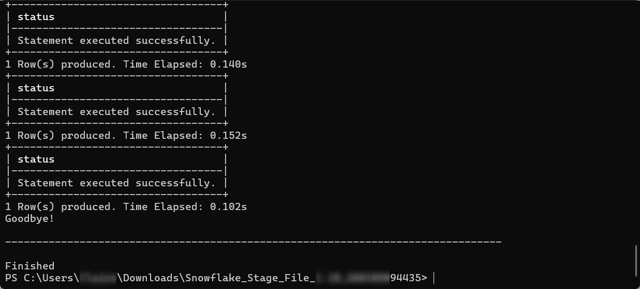
Finished, and read the result as described in Check the result.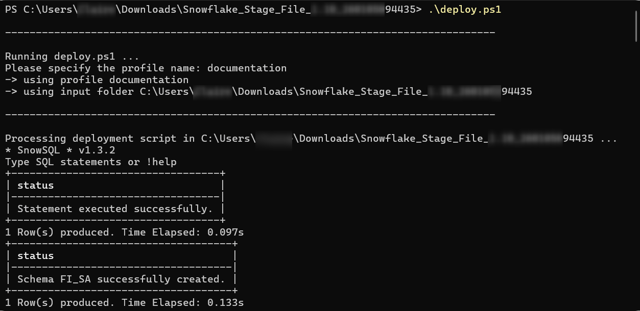
To skip the prompt, pass the connection: .\deploy.ps1 -ProfileName <connection name>. To deploy another folder, add -ArtifactInputPath <artifacts folder>. The order of the scripts that deploy.sql runs is explained in Snowflake - Artifacts.
With more than one of the options Depending Tasks, Stage-Driven Tasks and Near-Realtime Tasks in LoadControl Options, the deployment creates no tasks:

Run the task script of the option you load with, for example snowsql -c <connection name> -f LoadControl\snowflake_depending_tasks.sql. For Stage-Driven Tasks, run snowflake_stage_driven_tasks.sql and then snowflake_stage_driven_tasks_set_loglevel.sql.
Check the result
The deployment succeeded when the SnowSQL output contains no error message and the script ends with Goodbye! and Finished. Each statement prints its status, for example Table <table name> successfully created.
In Snowsight, the database then shows the tables, views and stored procedures of each layer schema and the tasks of the load control schema, for example of a Stage Files project:


The tasks are created suspended. Loading starts them, see Snowflake - Load data - Native Load Control.
Example
A deployment with a key-pair connection named dwh_deploy prints, shortened:
Running deploy.ps1 ...
-> using profile dwh_deploy
-> using input folder <artifacts folder>
...
Processing deployment script in <artifacts folder> ...
* SnowSQL * v1.3.3
...
| Schema STG successfully created. |
...
| Table STG_ST_BDC_CUSTOMER successfully created. |
...
| No active tasks. Safe to proceed. |
...
Goodbye!
...
Finished
Redeploy and keep data
To deploy a changed project into databases that already hold data:
- In Project Settings, open the Additional Settings. In the Deployment group, clear
Generate Drop Table StatementsandGenerate Drop Load Control Schemain Deployment Options. - Generate, download and replace the placeholders, then run
.\deploy.ps1.
The deployment then creates only the tables that do not exist yet. Existing tables keep their rows and their columns. Views, stored procedures and tasks are replaced, and the load control schema is kept.
Column changes are not applied to existing tables. To change existing tables, use a delta deployment such as Snowflake - Delta Deployment with Liquibase.
Failure symptoms and recovery
The deployment stops because a task graph is active
Message: -20001 with Deployment halted: A task graph is still active in this database and schema.
Cause: A load of the load control schema was running or scheduled when the task script started. The layer scripts ran before the task script.
Fix: Wait until the load has ended, then run .\deploy.ps1 again.
The deployment script does not find SnowSQL
Message: SnowSQL is not installed, not recognized or the PATH environment variable is not properly configured.
Cause: SnowSQL is not installed, or its folder is not in PATH.
Fix: Install it as described in Snowflake - Target environment and open a new PowerShell 7 window.
For failures in other steps, see Troubleshoot generation, deployment and load failures.
Release differences
Account and password prompts
Up to Generator 1.9, deploy.ps1 asked for the Snowflake account, the user and the password instead of a SnowSQL connection. Since Generator 1.10 it asks for the connection name.
Related articles
- Previous: Snowflake - Target environment, Generate artifacts, Download generated artifacts, Replace the placeholders in the artifacts
- Next: Snowflake - Load data - Native Load Control, Snowflake - Load data - Apache Airflow Load Control
- Reference: Snowflake - Placeholder values, Deployment Options (Project), LoadControl Options (Project)
- See also: Snowflake - Artifacts, Snowflake - Deployment with an Azure Pipeline, Snowflake - Delta Deployment with Liquibase, Troubleshoot generation, deployment and load failures, Deploy a Project in production