
Applies to
Platform: Snowflake
Load the deployed Snowflake solution with Apache Airflow by running the DAG that the generator writes. The DAG has one task per loader, runs them in dependency order and calls each loader through the Airflow connection snowflake_default. Afterwards the Graph of the run shows the state of every loader task.
The DAG is written for Apache Airflow 2. It imports airflow.operators.dummy and SnowflakeSqlApiOperator of the provider apache-airflow-providers-snowflake, which uses key-pair authentication.
Prerequisites
- LoadControl Options contains
Airflow, and Configure LoadControl istrue. - The artifacts are deployed without errors.
- An Airflow 2 environment with the Snowflake provider, for example the one of Apache Airflow - Load control environment.
- A Snowflake user with key-pair authentication and an encrypted private key. Airflow needs the private key text and the passphrase that encrypts it.
Run the DAG
- Copy
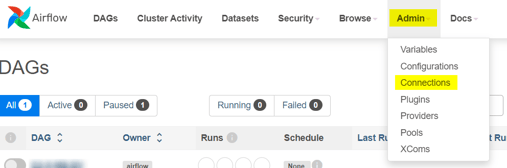
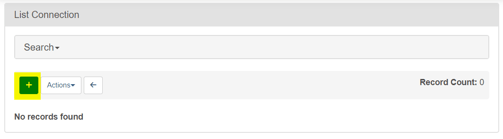
LoadControl\<project>_dag.pyfrom the replaced artifacts into the folderdagsof Airflow.<project>is the project name in lower case with underscores; the DAG ID is the file name without_dag.py. - In the Airflow UI, open Admin, choose Connections and select + (Add a new record).
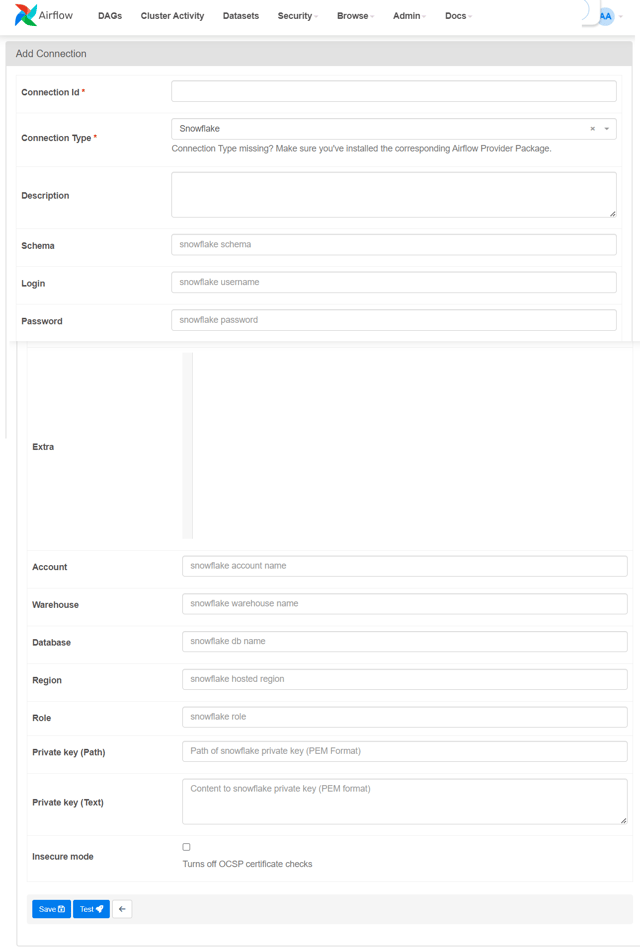
- Enter the connection. Each task names its loader with database and schema, so one connection serves all layers:
- Connection Id:
snowflake_default - Connection Type: Snowflake
- Schema: empty
- Login: the Snowflake user
- Password: the passphrase of the private key
- Account and Region: from the account URL
https://<account>.<region>.snowflakecomputing.com - Warehouse, Database and Role: a warehouse, the target database and the role of the user
- Private Key (Text): the private key, from
-----BEGIN ENCRYPTED PRIVATE KEY-----to-----END ENCRYPTED PRIVATE KEY-----
- Connection Id:
- Select Test; it shows
Connection successfully testedwhen Airflow reaches Snowflake. Then select Save.


- Open DAGs and switch on the toggle left of the DAG, or run
airflow dags unpause <dag id>.
- Select Trigger DAG in the column Actions, or run
airflow dags trigger <dag id>.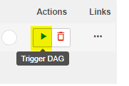
All tasks of a DAG run pass the same load timestamp to their loaders: the logical date of the run. The DAG has no schedule; it runs when you trigger it.
Check the result
Select the DAG, then the run, and open the tab Graph. The run succeeded when every task shows the state success. airflow dags list-runs -d <dag id> shows the state of each run.
Example
The DAG test_vaultandmart_snowflake of a DataVault and Mart project has one task per loader between the tasks begin and end. Each task calls one loader:
run_stg_st_bdc_customer_loader = SnowflakeSqlApiOperator(
    task_id = "STG_ST_BDC_CUSTOMER_Loader",
    sql="""CALL DWH.SA.STG_ST_BDC_CUSTOMER_LOADER(
      TO_TIMESTAMP_TZ('{{ logical_date.strftime(...) }}'),
      TO_TIMESTAMP_TZ('{{ logical_date.strftime(...) }}'))""",
    snowflake_conn_id='snowflake_default',
    database='DWH', schema='SA', warehouse='COMPUTE_WH',
    poll_interval=10, task_concurrency=1,
)
Here DWH, SA and COMPUTE_WH are the replaced example values of the Stage layer.
Failure symptoms and recovery
A task fails because the connection is missing
Cause: No Airflow connection has the ID snowflake_default.
Fix: Create the connection as in step 3. Then clear the failed task and its downstream tasks in the Graph, so that they run again.
The DAG shows an import error
Cause: The Airflow environment has no Snowflake provider, or it runs Airflow 3, which no longer contains airflow.operators.dummy.
Fix: Use an Airflow 2 environment with apache-airflow-providers-snowflake, as described in Apache Airflow - Load control environment.
For failures in other steps, see Troubleshoot generation, deployment and load failures.