
Applies to
Platform: Microsoft SQL Server
Deploy the generated artifacts of a Microsoft SQL Server project with deploy.ps1. The script runs sqlcmd, creates the databases, schemas and objects of every layer and the load control, and then validates every view and stored procedure. Afterwards the solution is ready to load.
Prerequisites
- The Microsoft SQL Server target environment is prepared: PowerShell 7, sqlcmd and a login that can create the databases and objects.
- The artifacts are generated and downloaded.
- The placeholders are replaced with the Microsoft SQL Server placeholder values.
Deploy the artifacts
- Open PowerShell 7 in the artifacts folder, the folder that contains
deploy.ps1. For example, typepwshin the address bar of File Explorer.With the default Deployment Options and Deploy LoadControl set to true, each deployment drops and recreates every generated table and the load control tables. Their data and the load history are lost. Before you deploy to a database that holds data, clear Generate Drop Table Statements in Project Settings, set Deploy LoadControl to false, and generate the artifacts again.
- Run
.\deploy.ps1.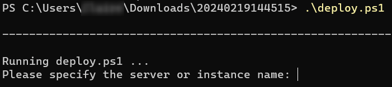
- At
Please specify the server or instance name, enter the server, for example<server name>\<instance name>or<server name>,<port>. Leave it empty forlocalhost.
- At
Please specify the user name, enter a SQL Server login, or leave it empty for Windows authentication.
- For a login, enter its password at
Please specify the password. The script shows the messages of sqlcmd and ends withFinished. - Read the result as described in Check the result.
To skip the prompts, pass the values as parameters: .\deploy.ps1 -ServerName <server name> -UserName <login> -Password <password>. The order of the scripts that deploy.sql runs is explained in Microsoft SQL Server - Artifacts.
Check the result
The deployment succeeded when no message starts with Msg and the last message before Finished is Deployment validation succeeded. When views or stored procedures do not compile, the deployment ends with:
Deployment validation found <number> errors.
Msg 50001, Level 16, State 1, Server <server name>, Line <line>
Deployment validation failed.
The Msg lines above it name each failed object.
SQL Server Management Studio then lists the tables, views and stored procedures, for example of a Data Vault project in one database:


Example
The Data Vault project Datavault.Mssql with 106 tables deploys in under 30 seconds to a local SQL Server with Windows authentication. The databases did not exist and were created. The output reads:
Running deploy.ps1 ...
-> using server name localhost
-> using no user name and password
...
Processing deployment script in <artifacts folder> ...
...
Creating Table [LC].[LoadConfig_LoadObject]...
...
Creating Procedure [LC].[Start_Execution]...
...
Deployment validation succeeded.
...
Finished
Redeploy and keep data
To deploy a changed project into databases that already hold data:
- In Project Settings, open the Additional Settings. In the Deployment group, clear
Generate Drop Table Statementsin Deployment Options. - In the Load Control group, set Deploy LoadControl to
false. Keep Configure LoadControltrue, so that new load objects are registered. - Generate, download and replace the placeholders, then run
.\deploy.ps1.
The deployment then creates only the tables that do not exist yet. Existing tables keep their rows and their columns. The load control keeps its configuration, execution plans and execution history, and new load objects are added. Views are dropped and created again, and stored procedures are altered. Each existing default index reports error 1913, see Failure symptoms and recovery.
Column changes are not applied to existing tables. When a view uses a new or renamed column of an existing table, the view fails. Every view built on it fails as well and is missing after the deployment. The next load stops at the first loader that reads a missing view. To change existing tables, use a delta deployment such as Microsoft SQL Server - Delta Deployment with Liquibase.
A changed Implementation Type is deployed as follows. From Cached to Virtual, the result view reads the source view, and the load object is deactivated. The old table, with its rows, and its loader stay in the database. From Virtual to Cached, the table and the loader are created, and the load object is added.
Failure symptoms and recovery
Each existing default index reports error 1913
Message: Msg 1913 with The operation failed because an index or statistics with name '<index name>' already exists on table '<table name>'.
Cause: With Generate Drop Table Statements cleared, the existing tables keep their indexes, and the deployment creates each default index again.
Fix: None needed when these are the only errors and the deployment ends with Deployment validation succeeded.
Views fail with invalid column or object names after a redeploy
Message: Msg 207 with Invalid column name '<column name>'., then Msg 208 with Invalid object name '<view name>'. for the views built on it
Cause: The model added or renamed a column of a table that the deployment kept.
Fix: Add or change the column in the table, for example with the delta deployment of Microsoft SQL Server - Delta Deployment with Liquibase, which also creates the views again.
The deployment script does not find sqlcmd
Message: SqlCmd is not installed, not recognized or the PATH environment variable is not properly configured
Cause: The sqlcmd folder is not in PATH.
Fix: Add it as described in Microsoft SQL Server - Target environment and open a new PowerShell 7 window.
For failures in other steps, see Troubleshoot generation, deployment and load failures.
Release differences
- Generator 2.2: the deployment ends with
SQL\validate_deployment.sql, which recompiles every view and stored procedure, see Generators Release - 2.2.0.
Related articles
- Previous: Microsoft SQL Server - Target environment, Generate artifacts, Download generated artifacts, Replace the placeholders in the artifacts
- Next: Microsoft SQL Server - Load data - Native Load Control, Microsoft SQL Server - Load data - Apache Airflow Load Control
- Reference: Microsoft SQL Server - Placeholder values, Deployment Options (Project), Deploy LoadControl (Project), Configure LoadControl (Project), Implementation Type (Model Object)
- See also: Microsoft SQL Server - Artifacts, Microsoft SQL Server - Delta Deployment with Liquibase, Troubleshoot generation, deployment and load failures, Deploy a Project in production