
Applies to
Platform: Fabric Warehouse
Deploy the generated artifacts of a Fabric Warehouse project with deploy.ps1. The script uploads the notebooks and the deployment pipeline to your Fabric workspace and runs the pipeline, which creates the execution log and the objects of every layer. Afterwards the solution is ready to load.
The procedure applies to all Fabric Warehouse generator configurations, including Dimensional and Dimensional and Mart.
Prerequisites
- The Fabric Warehouse target environment is prepared: a workspace with at least one warehouse and one lakehouse, and the service principal as Member.
- PowerShell 7.
deploy.ps1installs the PowerShell module Az.Accounts when it is missing. - The artifacts are generated and downloaded.
- The placeholders are replaced with the Fabric Warehouse placeholder values.
- The client ID, a client secret and the tenant ID of the service principal.
Deploy the artifacts
- Open PowerShell 7 in the artifacts folder, the folder that contains
deploy.ps1.With the default Deployment Options, each deployment drops and recreates every generated table and the execution log table, and their data is lost. Before you deploy to a warehouse that holds data, clear Generate Drop Table Statements in Project Settings and generate the artifacts again.
- Run
.\deploy.ps1. - At
Please specify the workspace name, enter the name of the workspace.
- At
Please specify the folder, enter a workspace folder for the notebooks, or leave it empty for the root folder. The script creates a missing folder. - At
Please specify the service principle user name, enter the client ID of the service principal. - At
Please specify the service principle password, enter the client secret. - At
Please specify the Azure tenant ID, enter the tenant ID. - Wait until the script prints
Finished. It uploads the notebooks and the pipeline<project>_deployment, starts the pipeline and prints its status every 15 seconds.
The script sets the first lakehouse and the first warehouse it finds in the workspace as defaults of the notebooks and prints their names. To skip the prompts, pass the values as parameters:
.\deploy.ps1 -WorkspaceName <workspace name> -Folder <folder>
  -UserName <client ID> -Password <client secret>
  -TenantId <tenant ID>
Type the call on one line. With an empty service principal user name, the script asks for the tenant ID and the subscription ID instead and signs you in through the browser.
With -SkipDeployment, the script only uploads. Then open the pipeline <project>_deployment in Fabric and select Run.

The pipeline runs <project>_deploy_loadcontrol first and then <project>_deploy_1 to <project>_deploy_<number>, each after the previous one succeeded.
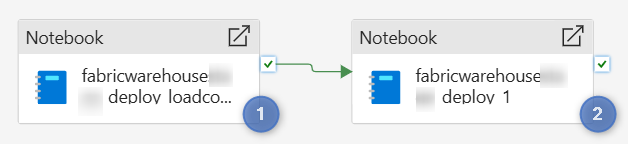
Check the result
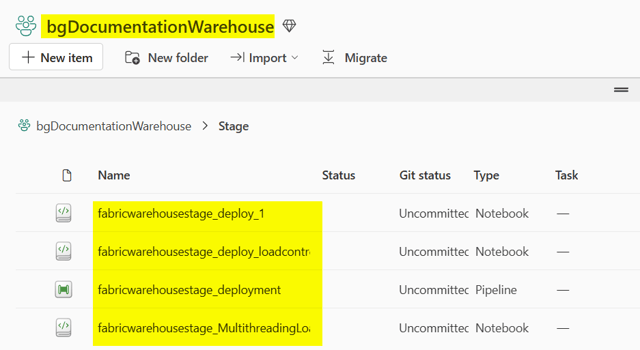
The deployment succeeded when the script prints Deployment job run completed successfully before Finished. The workspace folder then holds the notebooks and the pipeline:
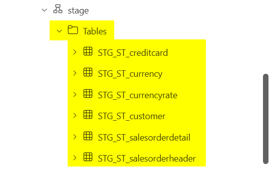
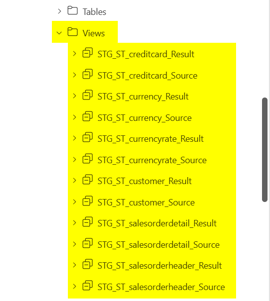
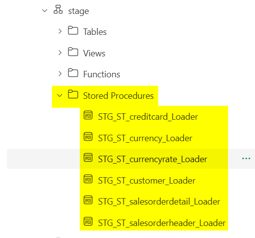
The pipeline run lists every activity as Succeeded. The warehouse shows the tables, views and stored procedures in the schema of each layer, for example for a Stage layer:
The execution log table appears in the lakehouse of the load control.
Example
The Data Store project test.datastore.fabricwh was deployed to the workspace my_workspace with the folder my_folder, the lakehouse my_lakehouse and the warehouse my_warehouse. The output reads, shortened:
Running deploy.ps1 ...
-> using workspace my_workspace
-> using folder my_folder
-> using user name <client ID> and password for service principal
...
Lakehouse my_lakehouse found with id <id> (used as default
  lakehouse) - Please ensure that all referenced lakehouses exist!
Warehouse my_warehouse found with id <id> (used as default
  warehouse) - Please ensure that all referenced warehouses exist!
...
Uploading new notebook test_datastore_fabricwh_deploy_1
...
Uploading new pipeline test_datastore_fabricwh_deployment
...
Deployment job run status: InProgress. Checking again in 15 seconds...
Deployment job run status: Completed.
Deployment job run completed successfully
...
Finished
Long lines are wrapped here. The pipeline ran for about 13 minutes and created 95 tables, 303 views and 97 stored procedures in the schemas stage and store.
Redeploy and keep data
To deploy a changed project into a warehouse that already holds data:
- In Project Settings, clear
Generate Drop Table Statementsin Deployment Options. - Generate, download and replace the placeholders with the same values, then run
.\deploy.ps1with the same workspace and folder.
deploy.ps1 updates the notebooks and the pipeline that exist under the same names and runs the pipeline. The deployment notebooks then create only the tables that do not exist yet, and existing tables are not dropped. The load control deployment notebook creates the execution log only when it does not exist. Views are dropped and created again, and stored procedures are created or altered. Column changes are not applied to existing tables.
Failure symptoms and recovery
The script finds no lakehouse or warehouse
Message: Lakehouse not found or Warehouse not found
Cause: The workspace has no lakehouse or no warehouse.
Fix: Create the missing item as described in Fabric Warehouse - Target environment and run .\deploy.ps1 again.
The load control deployment fails with a namespace error
Message: [REQUIRES_SINGLE_PART_NAMESPACE] spark_catalog requires a single-part namespace, but got <lakehouse>.<schema>
Cause: The execution log is in a lakehouse with schemas, but the default lakehouse of the load control notebooks has no schemas. deploy.ps1 sets the first lakehouse of the workspace as default.
Fix: Make a lakehouse with schemas the default lakehouse of both load control notebooks and run the pipeline again. Alternatively, place the execution log in a lakehouse without schemas and leave the load control schema_name empty.
The deployment job run fails
Message: Deployment job run failed
Cause: An activity of the pipeline failed, and the following activities did not run.
Fix: Open the pipeline run in Fabric, select the failed activity and read its error. Correct the cause and run the pipeline again.
For failures in other steps, see Troubleshoot generation, deployment and load failures.
Related articles
- Previous: Fabric Warehouse - Target environment, Generate artifacts, Download generated artifacts, Replace the placeholders in the artifacts
- Next: Fabric Warehouse - Load data - Native Load Control
- Reference: Fabric Warehouse - Placeholder values, Deployment Options (Project), Notebook Deployment Objects Limit (Project), Deploy LoadControl (Project)
- See also: Fabric Warehouse - Artifacts, Manage Project settings and Generator configuration, Troubleshoot generation, deployment and load failures