
Applies to
Platform: Fabric Warehouse
The artifacts of a Fabric Warehouse generator are Fabric notebooks, a deployment pipeline definition and PowerShell scripts that upload and run them. This article explains what each file does and how the files relate. Use it to find the notebook that failed and to see which project settings change the artifacts.
All seven Fabric Warehouse generator configurations produce this structure, from Stage to Dimensional and Mart. The content of the deployment notebooks differs per configuration.
Files in the artifacts folder
For example, the artifacts folder of a Stage project:
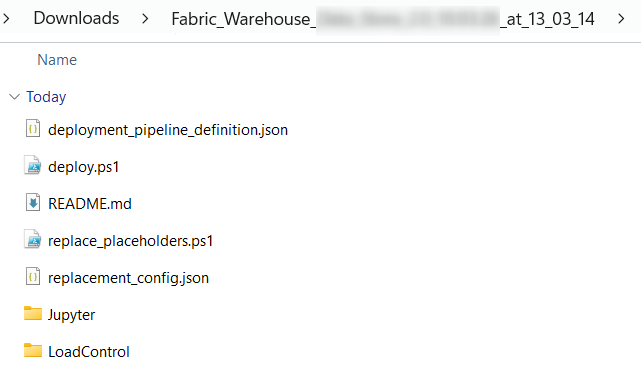
deploy.ps1: uploads the notebooks and the deployment pipeline to a Fabric workspace and runs the pipeline. See Fabric Warehouse - Deployment.deployment_pipeline_definition.json: the pipeline<project>_deployment. Its first activity runs the load control deployment notebook. Then the deployment notebooks run in order, each after the previous one succeeded.replace_placeholders.ps1andreplacement_config.json: replace the placeholders of all files. See Replace the placeholders in the artifacts and Fabric Warehouse - Placeholder values.README.md: the generator and its version, the project, the branch, the build time, and the number of model objects, deployment objects and validation warnings.Jupyter\<project>_deploy_<number>.ipynb: the T-SQL deployment notebooks. Each cell holds the statements of one deployment step, for example a table, a view or a loader.LoadControl\<project>_deploy_loadcontrol.ipynb: a Python notebook that creates the execution log as a Delta table in the lakehouse.LoadControl\<project>_MultithreadingLoadExecution.ipynb: the Python notebook that loads the data. See Fabric Warehouse - Load data - Native Load Control.ParseError.log: only when the generation reported validation warnings; it lists them.
In the file names, <project> is the project name with underscores in place of dots, for example test_datastore_fabricwh. A deployment notebook holds at most as many cells as Notebook Deployment Objects Limit allows, 100 by default, and further cells go to the next notebook.
What the deployment notebooks create
Each cell switches to the warehouse of its layer with USE. The first cell of a layer creates its schema when it is missing. Then the cells create the objects of each model object:
- Tables: with the default Deployment Options, each table is dropped and created again, empty. With Generate Drop Table Statements cleared, only missing tables are created.
- Views: dropped and created again.
- Stored procedures: the loaders, created with
CREATE OR ALTER PROCEDURE.
Keys are created as NONCLUSTERED and NOT ENFORCED, and no table has an IDENTITY column. The load control deployment notebook creates the execution log with CREATE OR REPLACE TABLE, which empties it. With Generate Drop Table Statements cleared, it uses CREATE TABLE IF NOT EXISTS and keeps the log.
Settings that change the artifacts
- LoadControl Options (Project):
Multi-Threading Notebook, the only value, adds the notebook<project>_MultithreadingLoadExecution.ipynband theloadcontrolvariables ofreplacement_config.json. - Deploy LoadControl (Project): off removes the notebook
<project>_MultithreadingLoadExecution.ipynb. The load control deployment notebook stays the first activity of the pipeline. - Configure LoadControl (Project): does not change the artifacts of Fabric Warehouse.
- Deployment Options (Project): decides whether existing tables and the execution log are dropped.
- Generation for a Dataflow Modeling View: the file names carry the view name, for example
<project>_<view>_deploy_1.ipynb.
Example
With the default settings, the Data Store project test.datastore.fabricwh fills five deployment notebooks, four with 100 cells and one with 97. Its artifacts contain these files:
deploy.ps1
deployment_pipeline_definition.json
ParseError.log
README.md
replace_placeholders.ps1
replacement_config.json
Jupyter\test_datastore_fabricwh_deploy_1.ipynb
Jupyter\test_datastore_fabricwh_deploy_2.ipynb
Jupyter\test_datastore_fabricwh_deploy_3.ipynb
Jupyter\test_datastore_fabricwh_deploy_4.ipynb
Jupyter\test_datastore_fabricwh_deploy_5.ipynb
LoadControl\test_datastore_fabricwh_deploy_loadcontrol.ipynb
LoadControl\test_datastore_fabricwh_MultithreadingLoadExecution.ipynb
Its README.md reports 18 validation warnings, which ParseError.log lists. The pipeline test_datastore_fabricwh_deployment runs six activities in this order:
test_datastore_fabricwh_deploy_loadcontrol
test_datastore_fabricwh_deploy_1
test_datastore_fabricwh_deploy_2
test_datastore_fabricwh_deploy_3
test_datastore_fabricwh_deploy_4
test_datastore_fabricwh_deploy_5
Related articles
- Previous: Generate artifacts, Download generated artifacts
- Next: Replace the placeholders in the artifacts, Fabric Warehouse - Deployment
- Reference: Fabric Warehouse - Placeholder values, LoadControl Options (Project), Deploy LoadControl (Project), Configure LoadControl (Project), Deployment Options (Project), Notebook Deployment Objects Limit (Project)
- See also: Fabric Warehouse - Load data - Native Load Control, Understand Load Control, Troubleshoot generation, deployment and load failures