Before loading the data from your Source(s) System(s) to Azure Synapse, please:
You are now ready to load the data.
There is one possibility to load the data natively with Azure Synapse:
- In parallel with a multi-thread approach
Load the data
We will explain how to load the data using the possible target environment: Azure Synapse.
To load the data:
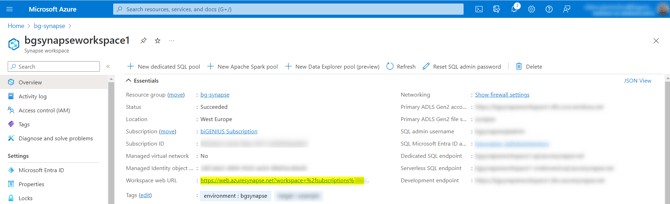
- Open Azure Synapse Analytics with the Workspace web URL provided in the Azure Synapse Workspace resource:
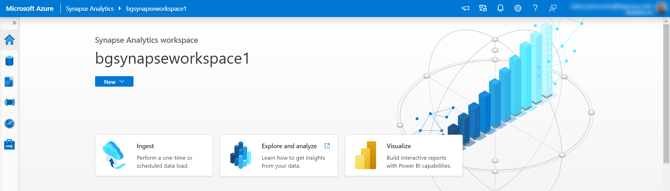
- Azure Synapse Analytics is opened:
- Click on the Develop menu on the left-hand side:

- Open the XXX_MultithreadingLoadExecution.ipynb file
- Select the Apache Spark Pool (bgaasspark33v2 in our example).

- Execute all steps
- The data were loaded:
- You should have the target Parquet files created for each Target Model Object, for example, for the Stage CreditCard:
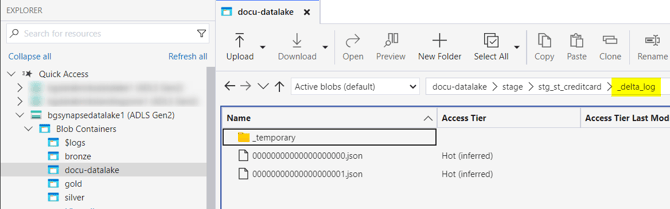
- You should have the target Parquet files created for each Target Model Object, for example, for the Stage CreditCard:
- Execute XXXX_SelectResults.ipynb file
- It displayed a resume of the number of rows loaded for each Target Model Object, for example:
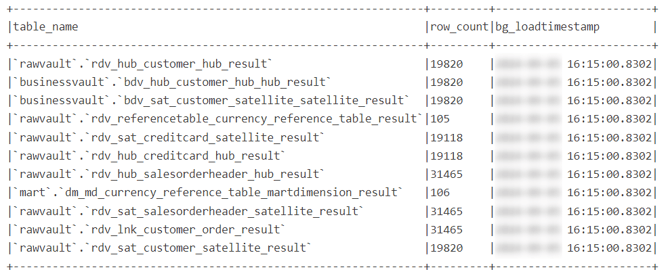
- It displayed a resume of the number of rows loaded for each Target Model Object, for example:
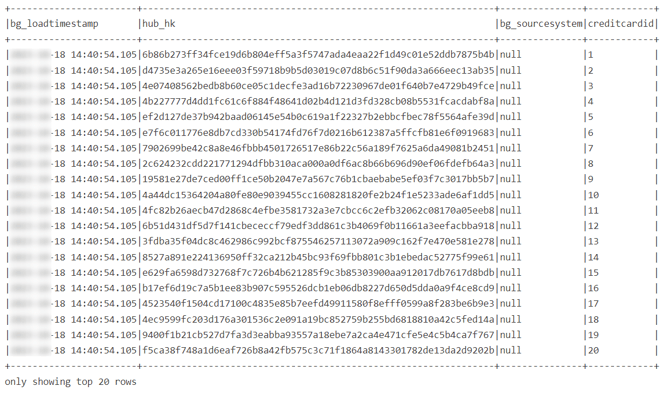
You can now check that your data was correctly loaded with the following script:
--Create a new step with the following code:
mydf = spark.sql("select * from `rawvault`.`rdv_hub_creditcard_hub`")
mydf.show(truncate = False)
And see the content of your Target Parquet file:
Load the data partially
It is possible to generate, deploy, and then load data partially based on the Dataflow Modeling Views content.
All the previous steps are similar to the complete Project:
- Generate for a View rather than the overall Project
- Deploy the partial generation
- Load the data - partially
You use the generated code only for the View.
Load all the data from partial deployments
If you organized your Project Model Objects in different Dataflow Modeling Views, you can:
- Load the data partially for each View (previous chapter)
- Load the data for all the Views in a Synapse Pipeline (see below)
To load the data for all the Views in a Synapse Pipeline:
- A Model Object must be in only one View
- If a Model Object needs to be loaded after another, it must be in the same View or in a View loaded after the first one
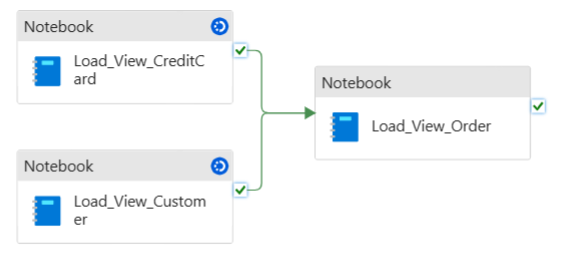
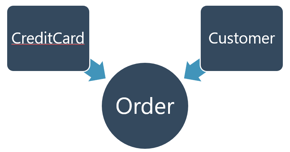
Example: 3 View CreditCard, Customer, and Order. Order contains Model Objects that depend on Model Objects in the Customer and CreditCard Views.
The View flow is:
For each Data Modeling View:
- Generate for a View rather than the overall Project
- Deploy the partial generation
- Deploy the load control only once (with the first deployed View, for example)
Then, create a Synapse Pipeline:
- Open Azure Synapse Analytics with the Workspace web URL provided in the Azure Synapse Workspace resource:
- Azure Synapse Analytics is opened:
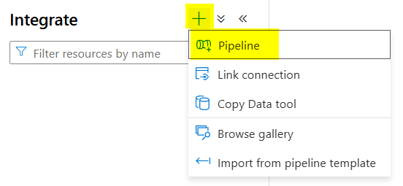
- Click on the Integrate menu on the left-hand side:

- Open your work branch: demo_synapse in our example
- Click on the plus icon and choose the Pipeline option:
- Search for Synapse Notebook in the Activities:
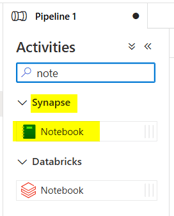
- Drag and drop it into the Pipeline workspace:
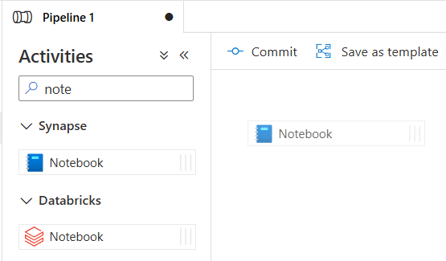
- For the first Notebook, fill in:
- General tab:
- Name: Load_View_XXX (XXX is the name of the first View to load)
- Settings tab:
- Notebook: Select the notebook XXX_MultithreadingLoadExecution.ipynb for the corresponding view
- Spark pool: select a spark pool
- General tab:
- Create the other Activities with the same previous steps
- Link activities:
- Hover over the source Activity, drag the green icon (On Success) to the target Activity:
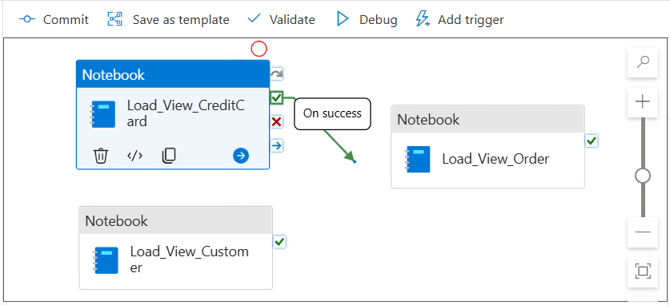
- Do it for each dependency
- Hover over the source Activity, drag the green icon (On Success) to the target Activity:
- In our example, the complete Pipeline looks like the following:
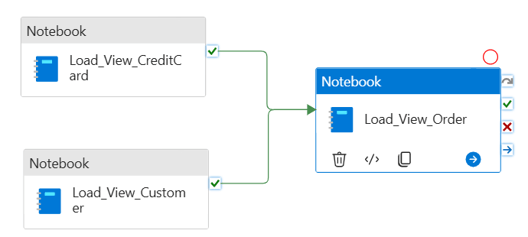
- Commit all in the demo_synapse branch:

- Make a pull request from your branch demo_synapse to the collaboration branch:

- Open the collaboration branch and click on the Publish button:

- Click on the Debug button in the Pipeline:

- The data load starts: