
While biGENIUS-X does not currently support delta deployment, several popular tools available on the market can assist you with this task.
More details are available here: Do a delta deployment.
We will explain in this article how to do a delta deployment for a Snowflake Project using Liquibase with the free Community version.
Example of environment
In this article, we will use:
-
A DEV (development) environment for a biGENIUS-X project deployed on a Snowflake database A
- It contains some changes we want to deploy on PROD:
- ADDINGS:
- New Stage EMPLOYEE
- UPDATES:
- ORDERDETAIL Satellite: LINETOTAL term renamed to TOTAL
- DELETES:
- CURRENCY Stage and reference Table were deleted
- ADDINGS:
- Deployment and data load of the last development version are done
- It contains some changes we want to deploy on PROD:
- A PROD (production) environment for a biGENIUS-X project deployed on a Snowflake database B
- Deployment and data load of the production version are done
- We don't want to lose any production data, even by deploying the changes from DEV
You can use our Snowflake - Target environment to implement these 2 environments.
Let's assume here that:
- Both databases can be accessed with a private key file located locally at this path:
- C:\TEMP\Snowflake_private_key\snowflake_key.p8
- Snowflake account:
-
Account: ud93525.eu-west-1
-
Account Identifier: CPXITPV-BGTRAINING
-
-
DEV database:
-
Warehouse: TRAINING_WH_LIQUIBASE
-
Database: SNOWFLAKE_LIQUIBASE_USER_01
-
Role: R_SNOWFLAKE_LIQUIBASE_USER_01
- UID: TRAINING_LIQUIBASE_USER_01
-
-
PROD database:
-
Warehouse: TRAINING_WH_LIQUIBASE_PROD
-
Database: SNOWFLAKE_LIQUIBASE_PROD_USER_01
-
Role: R_SNOWFLAKE_LIQUIBASE_PROD_USER_01
-
UID: TRAINING_LIQUIBASE_PROD_USER_01
-
Prerequisites
Liquibase folder structure
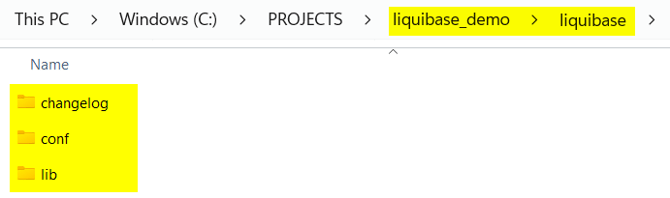
Prepare the following folder structure to work with Liquibase (anywhere on your computer):
-
liquibase_demo
- liquibase
- changelog
- conf
- lib
- liquibase
Driver
Download the needed drivers:
- Snowflake driver: https://repo1.maven.org/maven2/net/snowflake/snowflake-jdbc
- Download the latest version of the snowflake-jdbc-X.X.X.jar
- Additional drivers:
- https://repo1.maven.org/maven2/org/slf4j/slf4j-api/
- Download the latest version (not alpha)
- https://repo1.maven.org/maven2/org/slf4j/slf4j-simple/
- Download the latest version (not alpha)
- https://repo1.maven.org/maven2/org/bouncycastle/bcprov-jdk18on/
- Download the latest version (not alpha)
- https://repo1.maven.org/maven2/org/slf4j/slf4j-api/
-
- https://repo1.maven.org/maven2/org/bouncycastle/bcpkix-jdk18on/
- Download the latest version (not alpha)
- https://repo1.maven.org/maven2/org/bouncycastle/bcpkix-jdk18on/
Copy them into the lib folder.
Properties
Create a snowflake-session.properties file in the conf folder and copy the following text inside it:
# snowflake-session.properties
SESSION_PARAMETER_TIMESTAMP_TYPE_MAPPING=TIMESTAMP_TZ
TIMEZONE=UTC
Create a liquibase.properties file in the conf folder and copy the following text inside it:
# Target DB = PROD (where changes will be applied)
# Adapt with your Account, Account Identifier, Warehouse,
# Database, Role, Private key file, private key password
url: jdbc:snowflake://ud93525.eu-west-1.snowflakecomputing.com/?account=CPXITPV-BGTRAINING&db=SNOWFLAKE_LIQUIBASE_PROD_USER_01&warehouse=TRAINING_WH_LIQUIBASE_PROD&role=R_SNOWFLAKE_LIQUIBASE_PROD_USER_01&private_key_file=/liquibase/keys/snowflake_key.p8&private_key_file_pwd=bigenius
username: TRAINING_LIQUIBASE_PROD_USER_01

# Reference DB = DEV (source of truth)
# Adapt with your Account, Account Identifier, Warehouse,
# Database, Role, Private key file, private key password,
# Username
referenceUrl: jdbc:snowflake://ud93525.eu-west-1.snowflakecomputing.com/?account=CPXITPV-BGTRAINING&db=SNOWFLAKE_LIQUIBASE_USER_01&warehouse=TRAINING_WH_LIQUIBASE&role=R_SNOWFLAKE_LIQUIBASE_USER_01&private_key_file=/liquibase/keys/snowflake_key.p8&private_key_file_pwd=bigenius
referenceUsername: TRAINING_LIQUIBASE_USER_01

# Snowflake driver
# Adapt the jar name
driver: net.snowflake.client.jdbc.SnowflakeDriver
classpath: /liquibase/internal/lib/snowflake-jdbc-4.0.0.jar:/liquibase/internal/lib/slf4j-api-2.0.9.jar:/liquibase/internal/lib/slf4j-simple-2.0.9.jar:/liquibase/internal/lib/bcprov-jdk18on-1.83.jar:/liquibase/internal/lib/bcpkix-jdk18on-1.83.jar
defaultSchemaName=LC

# Force Liquibase to preserve exact Snowflake data types from reference schema (mainly for TIMESTAMP_TZ)
diffInclusionLevels=all
diffTypes=dataTypes,columns,tables,indexes,foreignkeys,primarykeys,uniqueconstraints,sequences
outputDefaultType=true
outputDefaultLength=true
outputDefaultPrecision=true
outputDefaultScale=true

# Snowflake session parameter to preserve TIMESTAMP_TZ types
driverPropertiesFile=/liquibase/conf/snowflake-session.properties

# Ensure full type fidelity during diff
strictTypeComparison=true

# At the end of liquibase.properties
typeAlias.TIMESTAMP_TZ=TIMESTAMP_TZ
Python
Install Python from here.
During installation, don’t forget to check the “Add to path” box
Generate the delta deployment scripts
To generate the delta deployment scripts, we will use the official Liquibase Docker image.
Let's generate all the delta deployment scripts in 3 steps:
-
All database objects except the Views
-
All Views
- All the Stored Procedures
As the Liquibase Community version doesn't include comparison for Stored Procedures and can't retrieve the original logical definition of views, we will use a Python script for the second and third steps.
All database objects except the Views
To generate the delta deployment scripts for all database objects except the Views:
- Open Powershell
- Navigate to your liquibase_demo folder:
--Example
cd C:\XXXXXXXX\liquibase_demo
- Execute the following command to generate the change log XML file:
Execute it only for 1 schema at a time.
Then execute it again for the next schema. The result file will be completed.
With all the schemas, the generation time is very long.
--Adapt the network name if needed
--Adapt the paths to the folders conf, changelog and lib if needed
--Adapt the paths and name of all drivers if needed
--Adapt the schemas and referenceSchemas depending on your Project

docker run --rm --network liquibase-network -v "C:\TEMP\Snowflake_private_key\snowflake_key.p8:/liquibase/keys/snowflake_key.p8:ro" -v "C:\PROJECTS\liquibase_demo\liquibase\conf:/liquibase/conf:ro" -v "C:\PROJECTS\liquibase_demo\liquibase\changelog:/liquibase/changelog" -v "C:\PROJECTS\liquibase_demo\liquibase\lib\snowflake-jdbc-4.0.0.jar:/liquibase/internal/lib/snowflake-jdbc-4.0.0.jar:ro" -v "C:\PROJECTS\liquibase_demo\liquibase\lib\slf4j-api-2.0.9.jar:/liquibase/internal/lib/slf4j-api-2.0.9.jar:ro" -v "C:\PROJECTS\liquibase_demo\liquibase\lib\slf4j-simple-2.0.9.jar:/liquibase/internal/lib/slf4j-simple-2.0.9.jar:ro" -v "C:\PROJECTS\liquibase_demo\liquibase\lib\bcprov-jdk18on-1.83.jar:/liquibase/internal/lib/bcprov-jdk18on-1.83.jar:ro" -v "C:\PROJECTS\liquibase_demo\liquibase\lib\bcpkix-jdk18on-1.83.jar:/liquibase/internal/lib/bcpkix-jdk18on-1.83.jar:ro" -e JAVA_OPTS='-Dnet.snowflake.jdbc.enableBouncyCastle=true' liquibase/liquibase:5.0.1 --defaultsFile=/liquibase/conf/liquibase.properties --changeLogFile=/liquibase/changelog/dev_to_prod_all_except_views.xml --schemas=BV --referenceSchemas=BV --includeSchema=true --outputDefaultSchema=true --log-level=info --diffTypes=tables,columns,indexes,foreignkeys,primarykeys,uniqueconstraints,sequences diffChangeLog 2>&1 | findstr /V "WARNING"
-
You should have a similar result:
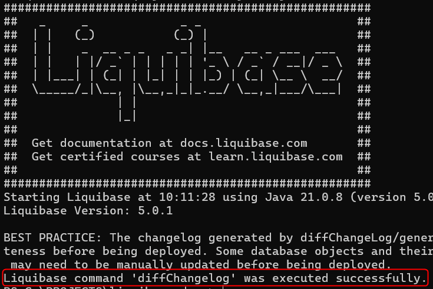
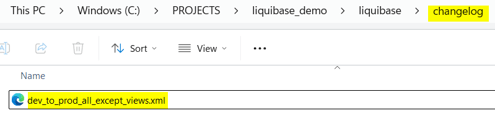
- The dev_to_prod_all_except_views.xml file was created in the changelog folder:
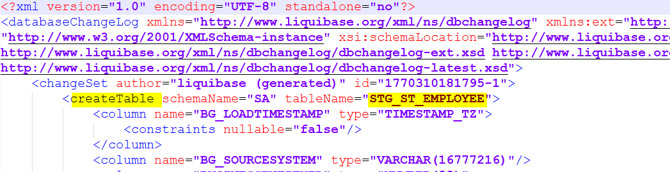
- It contains the list of all detected changes, for example:
- Execute a PowerShell script you can download here to replace the timestamp datatypes generated by Liquibase with TIMESTAMP_TZ
Liquibase has a limitation with the driver for Snowflake and can't generate TIMESTAMP_TZ datatypes, even when they are defined as such in the reference database (DEV).
- Execute the following command to generate the SQL file from the change log XML file:
--Adapt the network name if needed
--Adapt the paths to the folders conf, changelog and lib if needed
--Adapt the paths and name of all drivers if needed
--Adapt the schemas depending on your Project
--Adapt the path where to generate the SQL file if needed

 docker run --rm --network liquibase-network -v "C:\TEMP\Snowflake_private_key\snowflake_key.p8:/liquibase/keys/snowflake_key.p8:ro" -v "C:\PROJECTS\liquibase_demo\liquibase\conf:/liquibase/conf:ro" -v "C:\PROJECTS\liquibase_demo\liquibase\changelog:/liquibase/changelog" -v "C:\PROJECTS\liquibase_demo\liquibase\lib\snowflake-jdbc-4.0.0.jar:/liquibase/internal/lib/snowflake-jdbc-4.0.0.jar:ro" -v "C:\PROJECTS\liquibase_demo\liquibase\lib\slf4j-api-2.0.9.jar:/liquibase/internal/lib/slf4j-api-2.0.9.jar:ro" -v "C:\PROJECTS\liquibase_demo\liquibase\lib\slf4j-simple-2.0.9.jar:/liquibase/internal/lib/slf4j-simple-2.0.9.jar:ro" -v "C:\PROJECTS\liquibase_demo\liquibase\lib\bcprov-jdk18on-1.83.jar:/liquibase/internal/lib/bcprov-jdk18on-1.83.jar:ro" -v "C:\PROJECTS\liquibase_demo\liquibase\lib\bcpkix-jdk18on-1.83.jar:/liquibase/internal/lib/bcpkix-jdk18on-1.83.jar:ro" -e JAVA_OPTS='-Dnet.snowflake.jdbc.enableBouncyCastle=true' liquibase/liquibase:5.0.1 --defaultsFile=/liquibase/conf/liquibase.properties --changeLogFile=dev_to_prod_all_except_views.xml --schemas=SA,CA,DW --outputDefaultSchema=true updateSQL  > C:\PROJECTS\liquibase_demo\liquibase\changelog\dev_to_prod_all_except_views.sql
-
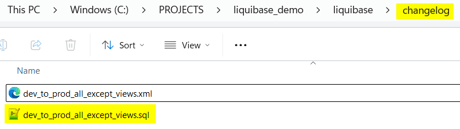
You should have a similar result:
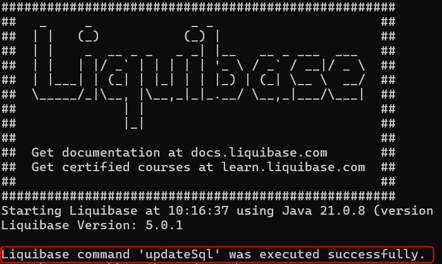
- The dev_to_prod_all_except_views.sql file was created in the changelog folder:
- It contains the SQL script with the delta changes, for example:

Some warnings are at the beginning of the file. They can be ignored. Please just remove them from the file: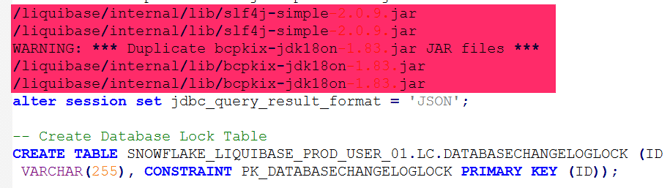
All Views
For the delta deployment of the Views, we will generate a file containing the creation scripts for all Views in DEV with a Python script.
-
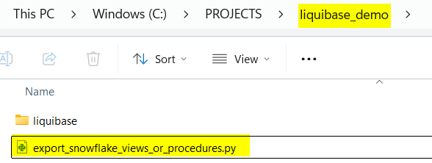
Download the Python script here
- Adapt the variables according to your Snowflake environment
-
Copy it into the root folder liquibase_demo:
-
Install the required Python libraries:
pip install snowflake
- Execute the Python code:
python .\export_snowflake_views_or_procedures.py views
-
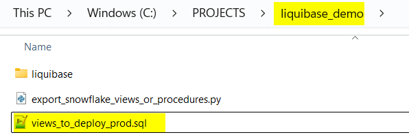
The views_to_deploy_prod.sql SQL file was created:
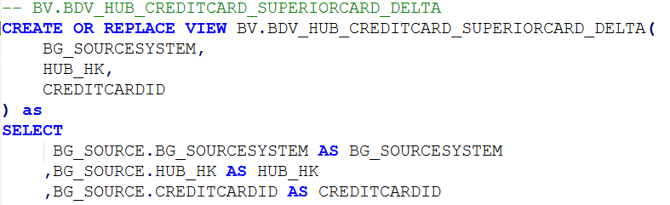
- It contains all the View creation, for example:
All the Stored Procedures
It is similar to the views; the Python script includes both creations.
- Execute the Python code:
python .\export_snowflake_views_or_procedures.py procedures
-
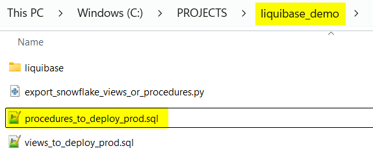
The procedures_to_deploy_prod.sql SQL file was created:
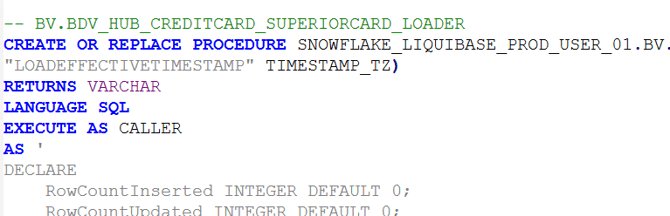
- It contains all the Procedures creation, for example:
Execute the Delta Deployment scripts
Execute the delta deployment in the PROD environment in the following order:
-
Deploy the Load Control:
- Execute the procedures_to_deploy_prod.sql in PROD
-
-
Drop all the existing tasks with the following script:
-
SHOW TASKS;

--Generate the DROP statements
SELECT 'DROP TASK IF EXISTS ' || '"' || "name" || '";'
FROM TABLE(RESULT_SCAN(LAST_QUERY_ID()));

--Replace here by the DROP statements generated before
XXXX
--Execute the DROP statements before
-
-
Generate the DEV biGENIUS-X project
- Replace the placeholders
-
-
- Execute in PROD the LoadControl > snowflake_depending_tasks.sql
In snowflake_depending_tasks.sql, replace:
-
the DEV database name by the PROD database name
- the DEV warehouse name by the PROD warehouse name
- Execute delta deployment for all database objects except views:
- Execute the dev_to_prod_all_except_views.sql in PROD
- Execute delta deployment for views:
- Execute the views_to_deploy_prod.sql in PROD
- Execute it several times in case of errors (errors due to the view creation order)
Here we go! All your changes have now been deployed on PROD without losing any production data.
You can now load the data with the following load controls: