
Before loading the data from your Source(s) System(s) to your Microsoft SQL Server Target System, please:
You are now ready to load the data with Apache Airflow.
Load the data with Apache Airflow
To load the data with Apache Airflow:
- Navigate to the Airflow homepage http://localhost:8080
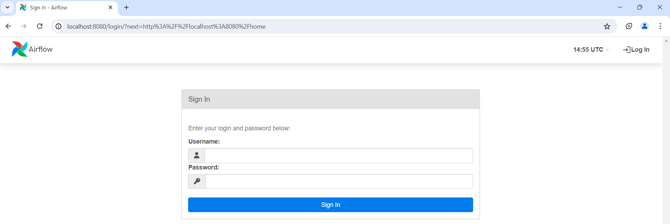
- Enter your credentials
- You should have the following result:
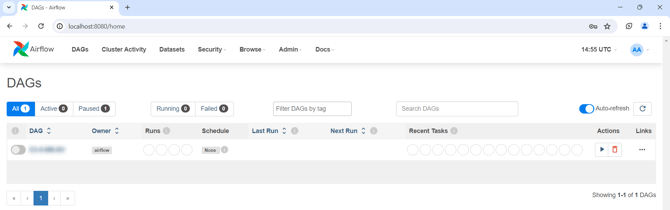
- Configure a connection to your target solution environment by following the steps:
- Open the menu Admin > Connections
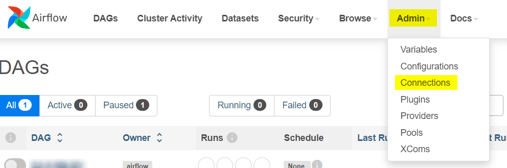
- Click on the plus icon
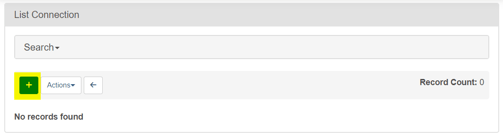
- Enter the connection details:
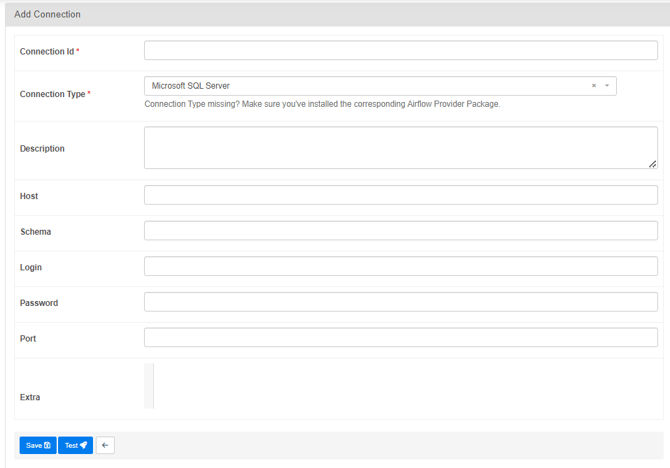
- Connection id: Must be dwh_azure_sql_conn
- Connection Type: select Microsoft SQL Server
- Host: IP address of your SQL Server instance
- In our example with SQL Server in a Docker, you can find out the IP address by executing the following command on Powershell:
- Open the menu Admin > Connections
(docker inspect training-sqlserver-2022 | ConvertFrom-Json)[0].NetworkSettings.Networks.'training-network'.IPAddress
-
-
-
- If SQL Server is installed locally on your laptop or in a distant server, you can find the IP address to use in the connection by executing the following command on Powershell:
-
-
ipconfig | findstr IPv4
-
-
-
- Schema: it is the target database name
- Login: login to access your SQL Server target database
- In our example: sa
- Password: password to access your SQL Server target database
- In our example: Admin2022!
- Port: port to access your SQL Server instance
- In our example: 1433
- Check the connection by clicking on the Test button:

- You should have the following message:

- Save the connection by clicking on the Save button:

-
-
- Go back to the DAGs list by clicking on the DAGs menu:

- To launch a data load, click on the Trigger DAG button for the relevant DAG:
- The data load started:

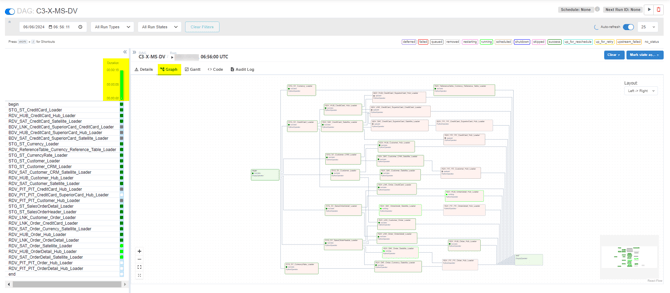
- You can follow the data load by clicking on the DAG, then on the current execution (green bar), and finally on the Graph tab:
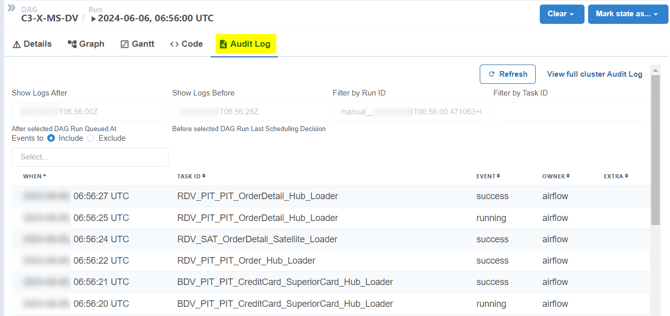
- If you want to check the logs of the execution, click on the Audit Log tab:
- You can now check that your data was correctly loaded with the following script in SQL Server Management Studio:
SELECT
SCHEMA_NAME(schema_id) AS [SchemaName],
[Tables].name AS [TableName],
SUM([Partitions].[rows]) AS [TotalRowCount],
Tables.type_desc
FROM sys.tables AS [Tables]
JOIN sys.partitions AS [Partitions] ON [Tables].[object_id] =
[Partitions].[object_id] AND [Partitions].index_id IN (0, 1)
WHERE SCHEMA_NAME(schema_id) NOT IN ('LC') --We exclude the Load Control tables
GROUP BY SCHEMA_NAME(schema_id),[Tables].name, Tables.type_desc
ORDER BY SCHEMA_NAME(schema_id), TotalRowCount DESC;