
While biGENIUS-X does not currently support delta deployment, several popular tools available on the market can assist you with this task.
More details are available here: Do a delta deployment.
We will explain in this article how to do a delta deployment for a Microsoft SQL Server Project using Liquibase with the free Community version.
Example of environment
In this article, we will use:
-
A DEV (development) environment for a biGENIUS-X project deployed on a Docker container A
- It contains some changes we want to deploy on PROD:
- ADDINGS:
- New Stage CreditCard
- UPDATES:
- Customer_Customer Entity: Country term changed from nvarch(50) to nvarchar(100)
- Date_Day Entity: DayNumberOfYear term renamed to DayOfYear
- DELETES:
- SalesPerson Stage and Entity were deleted
- ADDINGS:
- Deployment and data load of the last development version are done
- It contains some changes we want to deploy on PROD:
- A PROD (production) environment for a biGENIUS-X project deployed on a Docker container B
- Deployment and data load of the production version are done
- We don't want to lose any production data, even by deploying the changes from DEV
You can use our Microsoft SQL Server - Target environment to implement these 2 environments.
Both containers must be created in the same Docker network if you want to use Liquibase.
Let's assume here that:
-
Docker Network name: liquibase-network
-
DEV container:
-
Port: 1470
- IP: 172.21.0.2
-
-
PROD container:
-
Port: 1480
- IP: 172.21.0.3
-
Prerequisites
Liquibase folder structure
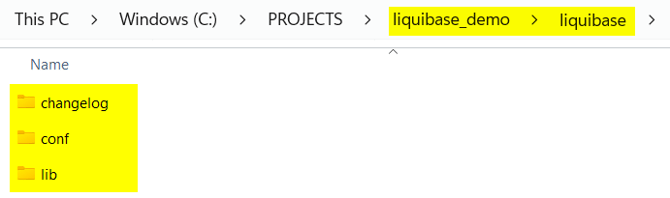
Prepare the following folder structure to work with Liquibase (anywhere on your computer):
-
liquibase_demo
- liquibase
- changelog
- conf
- lib
- liquibase
Driver
Download the Microsoft SQL Server JDBC driver JAR here:
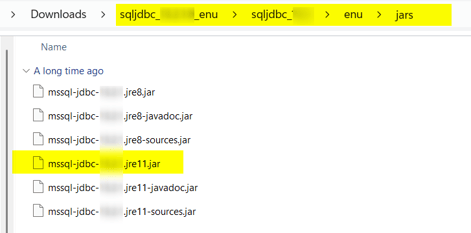
Copy the mssql-jdbc-XX.X.X.jre11.jar into the lib folder.
Properties
Create a liquibase.properties file in the conf folder and copy the following text inside it:
# Target DB = PROD (where changes will be applied)
# Adapt IP of the PROD container, username and password
# Replace XXX by the databaseName
# KEEP 1433 port: we need here the internal SQL Server port in the container
url=jdbc:sqlserver://172.21.0.3:1433;databaseName=XXX;encrypt=false;trustServerCertificate=true
username=sa
password=Admin2022!

# Reference DB = DEV (source of truth)
# Adapt IP of the DEV container, username and password
# Replace XXX by the databaseName
# KEEP 1433 port: we need here the internal SQL Server port in the container
referenceUrl =jdbc:sqlserver://172.21.0.2:1433;databaseName=XXX;encrypt=false;trustServerCertificate=true
referenceUsername=sa
referencePassword=Admin2022!

# SQL Server driver
# Adapt the drive name depending on the one downloaded
classpath=/liquibase/lib/mssql-jdbc-13.2.1.jre11.jar
Python
Install Python from here.
During installation, don’t forget to check the “Add to path” box
Generate the delta deployment scripts
To generate the delta deployment scripts, we will use the official Liquibase Docker image.
We will distinguish the delta deployment for Views and other database objects. View deployment scripts are generated by biGENIUS-X in a specific order, as some Views use other Views as sources. Liquibase doesn't know anything about this particular order. We may need to execute the delta deployment script for the Views 2 times.
Let's generate all the delta deployment scripts in 3 steps:
-
All database objects except the Views
-
All Views
- All the Stored Procedures
As the Liquibase Community version doesn't include comparison for Stored Procedures, we will use a Python script for the third step.
All database objects except the Views
To generate the delta deployment scripts for all database objects except the Views:
- Open Powershell
- Navigate to your liquibase_demo folder:
--Example
cd C:\XXXXXXXX\liquibase_demo
- Execute the following command to generate the change log XML file:
--Adapt the network name if needed
--Adapt the paths to the folders conf, changelog and lib if needed
--Adapt the schemas and referenceSchemas depending on your Project

docker run --rm --network liquibase-network -v "C:\PROJECTS\liquibase_demo\liquibase\conf:/liquibase/conf" -v "C:\PROJECTS\liquibase_demo\liquibase\changelog:/liquibase/changelog" -v "C:\PROJECTS\liquibase_demo\liquibase\lib:/liquibase/lib" liquibase/liquibase --defaultsFile=/liquibase/conf/liquibase.properties --changeLogFile=/liquibase/changelog/dev_to_prod_all_except_views.xml --schemas=SA,CA,DW --referenceSchemas=SA,CA,DW --includeSchema=true --outputDefaultSchema=true --log-level=warning --diffTypes=tables,columns,indexes,foreignkeys,primarykeys,uniqueconstraints,sequences diffChangeLog 2>&1 | findstr /V "WARNING"
-
You should have a similar result:
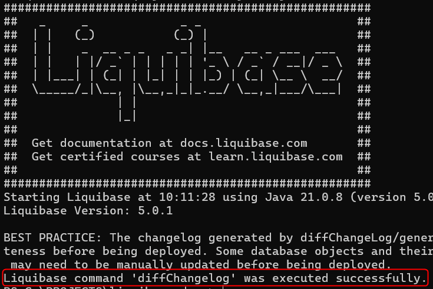
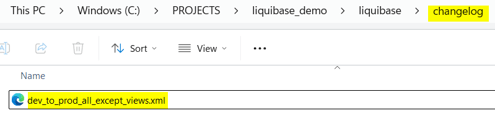
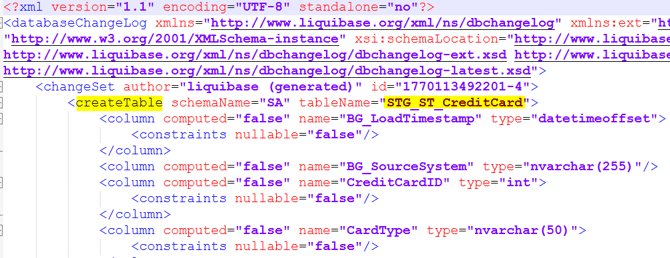
- The dev_to_prod_all_except_views.xml file was created in the changelog folder:
- It contains the list of all detected changes, for example:
- Execute the following command to generate the SQL file from the change log XML file:
--Adapt the network name if needed
--Adapt the paths to the folders conf, changelog and lib if needed
--Adapt the schemas depending on your Project
--Adapt the path where to generate the SQL file if needed

docker run --rm --network liquibase-network -v "C:\PROJECTS\liquibase_demo\liquibase\conf:/liquibase/conf" -v "C:\PROJECTS\liquibase_demo\liquibase\changelog:/liquibase/changelog" -v "C:\PROJECTS\liquibase_demo\liquibase\lib:/liquibase/lib"  liquibase/liquibase --defaultsFile=/liquibase/conf/liquibase.properties --changeLogFile=dev_to_prod_all_except_views.xml --schemas=SA,CA,DW --outputDefaultSchema=true updateSQL  > C:\PROJECTS\liquibase_demo\liquibase\changelog\dev_to_prod_all_except_views.sql
-
You should have a similar result:
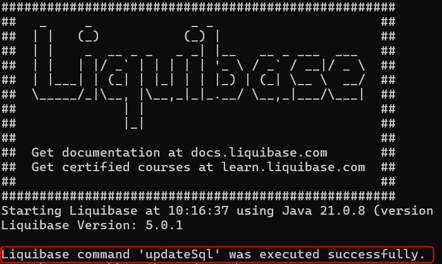
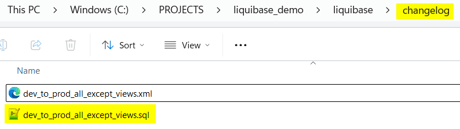
- The dev_to_prod_all_except_views.sql file was created in the changelog folder:
- It contains the SQL script with the delta changes, for example:
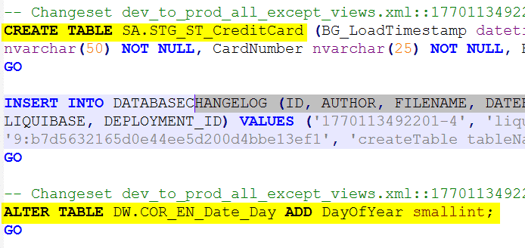
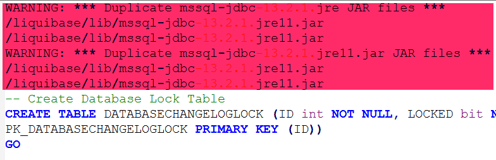
Some warnings are at the beginning of the file. They can be ignored. Please just remove them from the file:
All Views
To generate the delta deployment scripts for all Views, the process is similar:
- Open Powershell
- Navigate to your liquibase_demo folder:
- Execute the following command to generate the change log XML file:
--Adapt the network name if needed
--Adapt the paths to the folders conf, changelog and lib if needed
--Adapt the schemas and referenceSchemas depending on your Project

docker run --rm --network liquibase-network -v "C:\PROJECTS\liquibase_demo\liquibase\conf:/liquibase/conf" -v "C:\PROJECTS\liquibase_demo\liquibase\changelog:/liquibase/changelog" -v "C:\PROJECTS\liquibase_demo\liquibase\lib:/liquibase/lib" liquibase/liquibase --defaultsFile=/liquibase/conf/liquibase.properties --changeLogFile=/liquibase/changelog/dev_to_prod_views_only.xml --schemas=SA,CA,DW --referenceSchemas=SA,CA,DW --includeSchema=true --outputDefaultSchema=true --log-level=warning --diffTypes=views diffChangeLog 2>&1 | findstr /V "WARNING"
- Execute the following command to generate the SQL file from the change log XML file:
--Adapt the network name if needed
--Adapt the paths to the folders conf, changelog and lib if needed
--Adapt the schemas depending on your Project
--Adapt the path where to generate the SQL file if needed

docker run --rm --network liquibase-network -v "C:\PROJECTS\liquibase_demo\liquibase\conf:/liquibase/conf" -v "C:\PROJECTS\liquibase_demo\liquibase\changelog:/liquibase/changelog" -v "C:\PROJECTS\liquibase_demo\liquibase\lib:/liquibase/lib"  liquibase/liquibase --defaultsFile=/liquibase/conf/liquibase.properties --changeLogFile=dev_to_prod_views_only.xml --schemas=SA,CA,DW --outputDefaultSchema=true updateSQL  > C:\PROJECTS\liquibase_demo\liquibase\changelog\dev_to_prod_views_only.sql
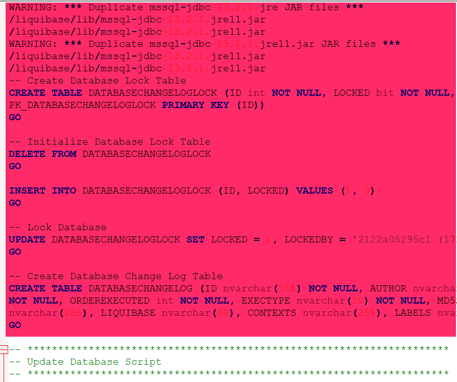
Some warnings are at the beginning of the file. They can be ignored. Please just remove them from the file.
There is also the creation of DATABASECHANGELOGLOCK, which is already done for the file dedicated to all database objects except views. Please remove them from the file, too.
All the Stored Procedures
For the delta deployment of the Stored Procedures, we will generate a file containing the creation scripts for all Stored Procedures in DEV with a Python script.
-
Download the Python script here
-
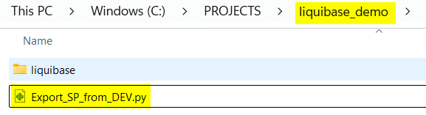
Copy it into the root folder liquibase_demo:
-
Install the required Python libraries:
pip install pyodbc
- Execute the Python code:
python .\Export_SP_from_DEV.py
-
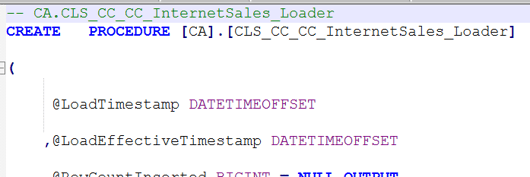
The All_Procedures_DEV.sql SQL file was created:
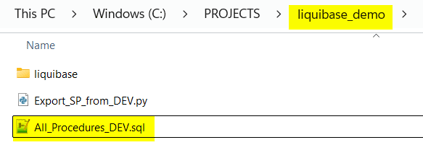
- It contains all the Stored Procedure creation, for example:
Execute the Delta Deployment scripts
Execute the delta deployment in the PROD environment in the following order:
-
Deploy the Load Control:
- Generate the DEV biGENIUS-X project
- Replace the placeholders
- Execute in PROD the following SQL files (file name can be different depending on your Project):
- LoadControl > L000_Loadcontrol_Deployment.sql
- LoadControl > L010_Stage_Configuration.sql
- ...
- LoadControl > L040_Mart_Configuration.sql
- Execute delta deployment for all database objects except views:
- Execute the dev_to_prod_all_except_views.sql in PROD
- Execute delta deployment for views:
- Execute the dev_to_prod_views_only.sql in PROD
- Execute it a second time in case of errors (errors due to the view creation order)
- Delete the Stored Procedures:
- You can download the script here
- Execute the Delete_All_Stored_procedures.sql in PROD
- Create the Stored Procedures:
- Execute the All_Procedures_DEV.sql in PROD
Here we go! All your changes have now been deployed on PROD without losing any production data.
You can now load the data with the following load controls: