
Applies to
Platform: Fabric Lakehouse
Deploy the generated artifacts of a Fabric Lakehouse project with deploy.ps1. The script uploads the notebooks to your Fabric workspace and runs the notebook <project>_deploy, which creates the load control log tables and the objects of every layer. Afterwards the solution is ready to load.
The procedure applies to all Fabric Lakehouse generator configurations with Target Platform Fabric. For Target Platform Azure Synapse, see Azure Synapse - Deployment.
Prerequisites
- The Fabric Lakehouse target environment is prepared.
- PowerShell 7. The script installs the module Az.Accounts when it is missing.
- The artifacts are generated and downloaded.
- The placeholders are replaced with the Fabric Lakehouse placeholder values, including a
schema_namefor every layer and for the load control. For targets in a lakehouse without schemas, everyschema_nameis empty, and Generate Create Schema If Not Exists Statements is cleared. - The client ID, a client secret and the tenant ID of the service principal.
- When the target already holds data: a backup from which you can restore it. With the default Deployment Options, the deployment drops and recreates the generated tables, so their data is lost.
Deploy the artifacts
- Open PowerShell 7 in the artifacts folder, the folder that contains
deploy.ps1.With the default Deployment Options, Generate Drop Table Statements is selected. Each deployment replaces every generated table and the load control log tables, which deletes their data. This also applies when deploy.ps1 runs the deployment after the upload. Before you deploy to a target that holds data, clear Generate Drop Table Statements in Project Settings and generate the artifacts again.
- Run
.\deploy.ps1. - At
Please specify the workspace name, enter the name of the workspace.
- At
Please specify the folder, enter a workspace folder for the notebooks, or leave it empty for the root folder. The script creates a missing folder. - At
Please specify the service principal user name, enter the client ID of the service principal. - At
Please specify the service principal password, enter the client secret. - At
Please specify the Azure tenant ID, enter the tenant ID. - Wait until the script prints
Finished. It runs<project>_deployas a notebook job and prints its status every 15 seconds.
Every notebook needs a default lakehouse, with schemas for targets in a lakehouse with schemas. Check the name of the default lakehouse that the script prints. To skip the prompts, pass the values as parameters:
.\deploy.ps1 -WorkspaceName <workspace name> -Folder <folder>
  -UserName <client ID> -Password <client secret>
  -TenantId <tenant ID>
Type the call on one line. With an empty user name, the script asks for the tenant and subscription ID and signs you in through the browser. It also uploads an Apache Airflow DAG when one is generated.
With -SkipDeployment, the script only uploads. Then open the notebook <project>_deploy in Fabric and run all cells:

Check the result
The deployment succeeded when the script prints Deployment job run completed successfully before Finished. The workspace folder then holds the notebooks:
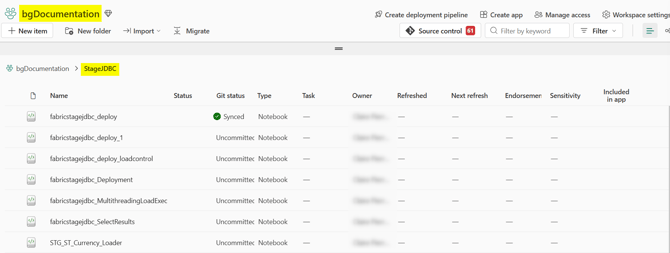
In a lakehouse with schemas, the lakehouse shows a schema per layer and one for the load control. To count the deployment steps, run this query in a notebook, with the lakehouse and schema of the load control:
SELECT log_level, COUNT(*) AS row_count
FROM <lakehouse>.<schema>.deployment_log
GROUP BY log_level;
Example
A Data Vault and Mart project was deployed to the lakehouse my_lakehouse, which has schemas, with the schemas stage, rawvault, businessvault, mart and loadcontrol. The output starts like this, shortened:
Running deploy.ps1 ...
-> using workspace my_workspace
-> using folder my_folder
-> using user name <client ID> and password for service principal
...
Lakehouse my_lakehouse found with id <id> (used as default
  lakehouse) - Please ensure that all referenced lakehouses exist!
Setting default lakehouse my_lakehouse on notebook
  test_vaultandmart_spark_fabric_deploy...
Uploading new notebook test_vaultandmart_spark_fabric_deploy
...
Deployment job run status: NotStarted. Checking again in 15
  seconds...
Long lines are wrapped here. The notebook ran for about five minutes and created the five schemas. The query above returned:
log_level  row_count
INFO       17
Redeploy and keep data
To deploy a changed project into a lakehouse with data:
- In Project Settings, clear
Generate Drop Table Statementsin Deployment Options. - Generate, download and replace the placeholders with the same values, then run
.\deploy.ps1with the same workspace and folder.
deploy.ps1 updates the notebooks of the same names and runs <project>_deploy. The notebooks then create tables and log tables with CREATE TABLE IF NOT EXISTS and insert missing unknown-member rows only. After the redeploy, the loaded rows and the execution log are still there. Views are created with CREATE OR REPLACE VIEW. Column changes are not applied to existing tables. With Generate Create Schema If Not Exists Statements also cleared, the schemas must exist. Notebooks that the project no longer generates stay in the workspace.
Failure symptoms and recovery
When the script prints Deployment job run failed, read the error of the failed cell in the run of <project>_deploy.
The load control deployment fails with a namespace error
Message: [REQUIRES_SINGLE_PART_NAMESPACE] spark_catalog requires a single-part namespace, but got <lakehouse>.<schema>
Cause: The targets are in a lakehouse with schemas, but the default lakehouse of the notebooks has no schemas.
Fix: Make the lakehouse with schemas the default lakehouse of every uploaded notebook and run <project>_deploy again.
The schema of the load control cannot be created
Message: [REQUIRES_SINGLE_PART_NAMESPACE] spark_catalog requires a single-part namespace, but got `<lakehouse>`.`` or Failed to get database metadata
Cause: The load control schema_name is empty while Generate Create Schema If Not Exists Statements is selected.
Fix: Enter a schema_name for the load control and every layer, replace the placeholders again and run .\deploy.ps1. For targets in a lakehouse without schemas, clear Generate Create Schema If Not Exists Statements instead, generate the artifacts again, replace the placeholders and run .\deploy.ps1.
For failures in other steps, see Troubleshoot generation, deployment and load failures.
Release differences
- Generator 2.2:
deploy.ps1sets the default lakehouse of the notebooks. Up to Generator 2.0, add the lakehouse in each notebook before you run it: Data items, Add data items, From OneLake catalog. - Generator 1.10: the artifacts contain the notebook
<project>_deploy, see Legacy manual deployment.
Legacy manual deployment
Up to Generator 1.9, the artifacts had no notebook <project>_deploy. You ran the notebook Jupyter\<project>_Deployment from a notebook of your own with %run. With Generator 1.9, you also ran LoadControl\<project>_Deployment_LoadControl the same way.
Related articles
- Previous: Fabric Lakehouse - Target environment, Generate artifacts, Download generated artifacts, Replace the placeholders in the artifacts
- Next: Fabric Lakehouse - Load data - Native Load Control, Fabric Lakehouse - Load data - Apache Airflow Load Control
- Reference: Fabric Lakehouse - Placeholder values, Deployment Options (Project), Notebook Deployment Objects Limit (Project), Target Platform (Project)
- See also: Fabric Lakehouse - Artifacts, Azure Synapse - Deployment, Troubleshoot generation, deployment and load failures