
Applies to
License: Professional · Enterprise
You edit the default value of a property on the Manage Default Values page of the Advanced Settings.
Edit a Default Value
To edit a Property's Default Value, access the Advanced Settings overview page and select the Default Values option in the left menu.
The Manage Default Values page is displayed:
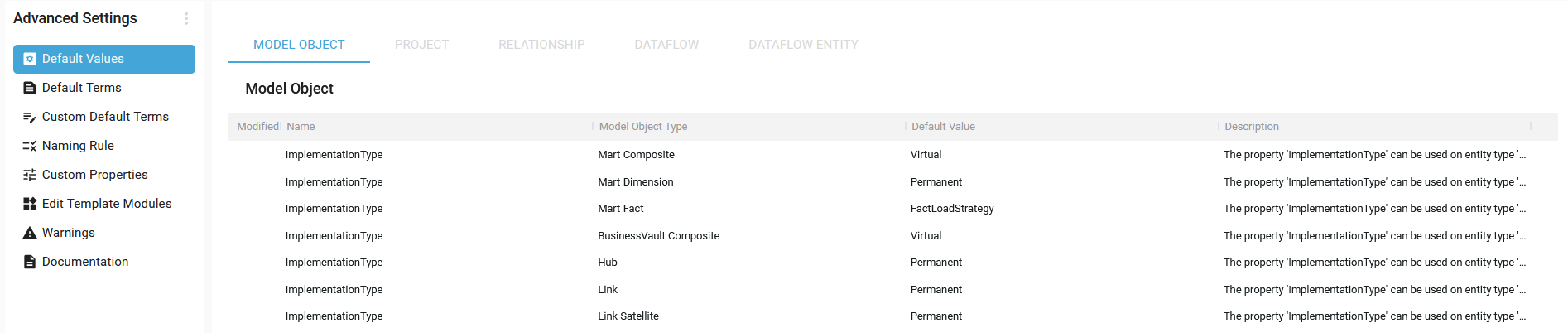
Hover over a Property in the desired tab. The Context menu is displayed:

Click on the Context menu for a Property and select the Edit option:

The Edit side panel window is opened with the possibility to update the Default Value of the Property:

The Default Value form input depends on the Property Type:
- Select: Elements in the select are the Allowed Values from the Property

- Boolean: Checkbox
- Single Line String: Text input

- Multi-Line String: Text area
Click on the SAVE button.
A pop-up appears to choose how to proceed with existing objects about the new default value:
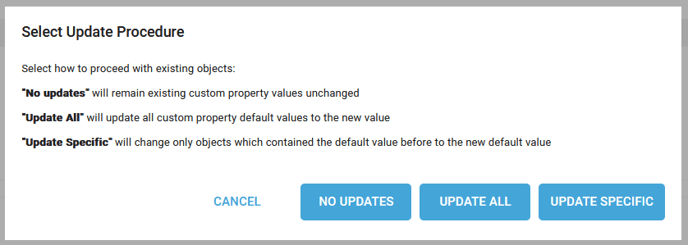
- No updates: no changes in Model Object property value
- Update All: all the Model Objects will be updated with the new property default value
- Update Specific: only the Model Object containing the previous default value will be updated with the new default value
After clicking on one of the buttons, the Property appears with a blue icon in the Modified Column:

A notification confirms the correct update:
