Before loading the data from your Source(s) System(s) to your Databricks Unity Target System, please:
You are now ready to load the data.
To load the data natively with Databricks Unity Catalog, you will use a multi-thread approach to load them in parallel.
You can also load the data with an external tool as:
Load the data
We will explain how to load the data using the possible target environment Databricks Unity.
To load the data:
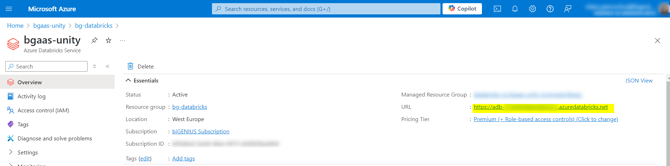
- Open Databricks with the URL provided in the Azure Databricks Service resource:
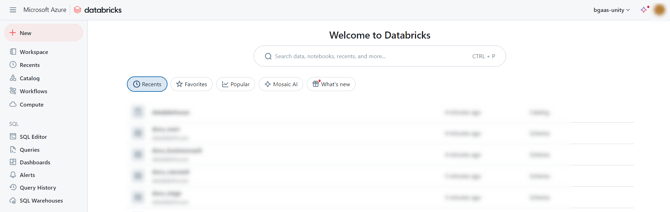
- Databricks is open:
- Click on the Workspace menu on the left-hand side:
- Expand the folders Workspace > Users > Your_user > artifacts:
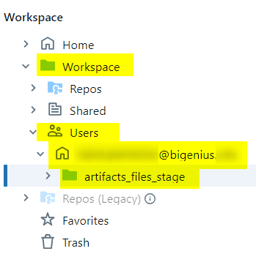
- Open the ./LoadControl/XXXX_MultiThreadingLoadExecution.ipynb
- Select the Compute Cluster (Demo Cluster in our example)

- Execute all the steps
- The data were loaded:
- You should have the target Parquet files created for each Target Model Object, for example, for the Stage CreditCard:
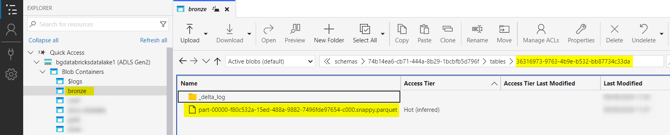
- You should have the target Parquet files created for each Target Model Object, for example, for the Stage CreditCard:
- You can check the load:
- Open the ./Helpers/XXX_SelectResults.ipynb file
- Run it
- A resume of the number of rows loaded for each Target Model Object is displayed, for example:
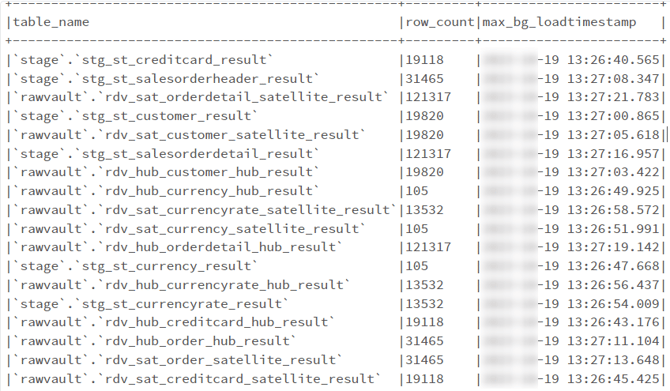
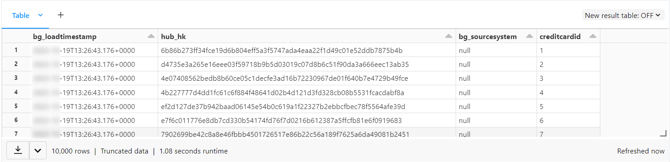
You can now check that your data was correctly loaded with the following script:
%sql
select * from `rawvault`.`rdv_hub_creditcard_hub`;
And see the content of your Target Parquet file: