
While biGENIUS-X does not currently support delta deployment, several popular tools available on the market can assist you with this task.
More details are available here: Do a delta deployment.
We will explain in this article how to do a delta deployment for a Databricks Project using Liquibase with the free Community version.
Example of environment
In this article, we will use:
-
A DEV (development) environment for a biGENIUS-X project deployed on a Databricks catalog A
- It contains some changes we want to deploy on PROD:
- ADDINGS:
- New Hub CURRENCY
- UPDATES:
- ORDERDETAIL Satellite: LINETOTAL term renamed to TOTAL
- DELETES:
- CURRENCY Reference Table was deleted
- ADDINGS:
- Deployment and data load of the last development version are done
- It contains some changes we want to deploy on PROD:
- A PROD (production) environment for a biGENIUS-X project deployed on a Databricks catalog B
- Deployment and data load of the production version are done
- We don't want to lose any production data, even by deploying the changes from DEV
You can use our Databricks - Target environment to implement these 2 environments.
To use Liquibase and handle its Databricks library limitations, please:
- Don't use hyphens "-" in catalog names
- Use different schema names in the DEV and PROD environments
Let's assume here that:
- Each catalog will be accessed with a different PAT
- Create a Personal Access Token (PAT): https://docs.databricks.com/en/dev-tools/auth/pat.html for DEV
- Create another Personal Access Token (PAT) for PROD
- Databricks account:
-
Url: dbc-84749d04-bda5.cloud.databricks.com
- Compute name: datalakehouse-liquibase
-
-
DEV catalog:
-
Catalog name: datalakehouse_liquibase_dev
-
-
PROD catalog:
-
Catalog name: datalakehouse_liquibase_prod
-
Prerequisites
Liquibase folder structure
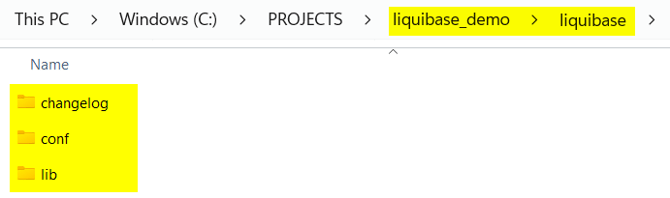
Prepare the following folder structure to work with Liquibase (anywhere on your computer):
-
liquibase_demo
- liquibase
- changelog
- conf
- lib
- liquibase
Driver
Download the needed drivers:
- Databricks driver: https://github.com/liquibase/liquibase-databricks/releases/
- Download the latest version of the liquibase-databricks-X.X.X.jar
- Additional driver:
- https://databricks-bi-artifacts.s3.us-east-2.amazonaws.com/simbaspark-drivers/jdbc/2.7.3/DatabricksJDBC42-2.7.3.1010.zip
- The needed library is DatabricksJDBC42.jar
- https://databricks-bi-artifacts.s3.us-east-2.amazonaws.com/simbaspark-drivers/jdbc/2.7.3/DatabricksJDBC42-2.7.3.1010.zip
It is not possible for the moment to use the official Databricks JDBC Driver available at https://www.databricks.com/spark/jdbc-drivers-download. The last available Liquibase Databricks driver (1.4.2) doesn't include a fix for the issue https://github.com/liquibase/liquibase-databricks/issues/340 (“enablearrow=0” duplication). So if you use it, you will have an error during the process setting due to EnableArrow=0 being set twice internally.
Copy them into the lib folder.
Properties
We need one property file per schema to compare.
You can find the httpPath by:
- Opening your Compute
- Checking the section Advanced > JDBC/ODBC:
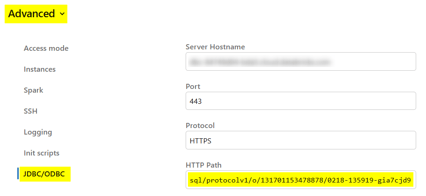
Following is an example liquibase-stage.properties for a schema named c3dbdv_stage_prod:
# Target DB = PROD (where changes will be applied)
# Adapt with your Databricks URL, httpPath
# PROD catalog name, PROD schema name, password (PROD PAT value)
url=jdbc:databricks://dbc-84749d04-bda5.cloud.databricks.com:443/default;transportMode=http;ssl=1;httpPath=sql/protocolv1/o/131701153478878/0218-135919-gia7cjd9;AuthMech=3;ConnCatalog=datalakehouse_liquibase_prod;ConnSchema=c3dbdv_stage_prod
username=token
password=dapic63ffXXXXXXXXXXXXX23e291fd1549
defaultCatalogName=datalakehouse_liquibase_prod
defaultSchemaName=c3dbdv_stage_prod

# Reference DB = DEV (source of truth)
# Adapt with your Databricks URL, httpPath
# DEV catalog name, DEV schema name, password (DEV PAT value)
referenceUrl=jdbc:databricks://dbc-84749d04-bda5.cloud.databricks.com:443/default;transportMode=http;ssl=1;httpPath=sql/protocolv1/o/131701153478878/0218-135919-gia7cjd9;AuthMech=3;ConnCatalog=datalakehouse_liquibase_dev;ConnSchema=c3dbdv_stage_dev
referenceUsername=token
referencePassword=dapibc08d6XXXXXXXXX9d6fb1452
referenceDefaultCatalogName=datalakehouse_liquibase_dev
referenceDefaultSchemaName=c3dbdv_stage_dev

# Databricks driver
driver=com.databricks.client.jdbc.Driver

liquibase.includedSnapshotTypes=TABLE,COLUMN,PRIMARYKEY,INDEX,SCHEMA
Python
Install Python from here.
During installation, don’t forget to check the “Add to path” box
Generate the delta deployment scripts
To generate the delta deployment scripts, we will use the official Liquibase Docker image.
Let's generate all the delta deployment scripts in 2 steps:
-
All database objects except the Views
-
All Views
Since the Liquibase Databricks library doesn't work well with the Views definition, we will use a Python script for this part.
All database objects except the Views
To generate the delta deployment scripts for all database objects except the Views:
- Open Powershell
- Navigate to your liquibase_demo folder:
--Example
cd C:\XXXXXXXX\liquibase_demo
- Execute the following command to generate the change log XML file:
Execute it only for 1 schema at a time.
Then execute it again for the next schema. The result file will be completed.
It is not possible to include all the schemas simultaneously.
--Adapt the network name if needed
--Adapt the paths to the folders conf, changelog and lib if needed
--Adapt the liquibase property file name if needed (one per schema exists)
--Adapt XML file name if needed (one per schema exists)

docker run --rm --network liquibase-network -v "C:\PROJECTS\liquibase_demo\liquibase\conf:/liquibase/conf" -v "C:\PROJECTS\liquibase_demo\liquibase\changelog:/liquibase/changelog" -v "C:\PROJECTS\liquibase_demo\liquibase\lib:/liquibase/lib" liquibase/liquibase --defaultsFile=/liquibase/conf/liquibase-rawvault.properties --changeLogFile=/liquibase/changelog/dev_to_prod_all_except_views_rawvault.xml --diffTypes=tables,columns,indexes,foreignkeys,primarykeys,uniqueconstraints,sequences --log-level=warning diffChangeLog 2>&1 | findstr /V "WARNING"
-
You should have a similar result:
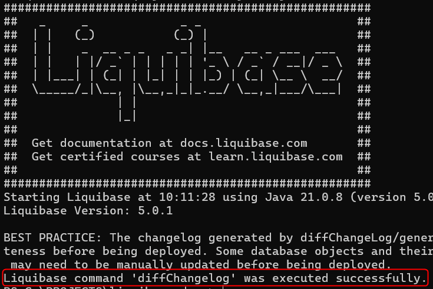
- The dev_to_prod_all_except_views_rawvault.xml file was created in the changelog folder:
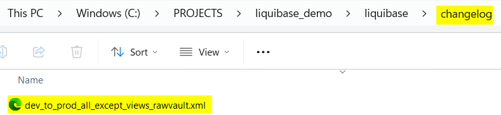
- It contains the list of all detected changes, for example:
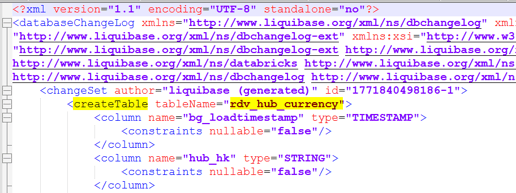
- Once all the schemas were treated to generate the change log XML file:
- Execute the following command to generate the SQL file from the change log XML file:
Execute it only for 1 schema at a time.
Then execute it again for the next schema. The result file will be completed.
It is not possible to include all the schemas simultaneously.
--Adapt the network name if needed
--Adapt the paths to the folders conf, changelog and lib if needed
--Adapt the liquibase property file name if needed (one per schema exists)
--Adapt SQL file name if needed (one per schema exists)

docker run --rm --network liquibase-network -v "C:\PROJECTS\liquibase_demo\liquibase\conf:/liquibase/conf" -v "C:\PROJECTS\liquibase_demo\liquibase\changelog:/liquibase/changelog" -v "C:\PROJECTS\liquibase_demo\liquibase\lib:/liquibase/lib"  liquibase/liquibase --defaultsFile=/liquibase/conf/liquibase-rawvault.properties --changeLogFile=dev_to_prod_all_except_views_rawvault.xml updateSQL  > C:\PROJECTS\liquibase_demo\liquibase\changelog\dev_to_prod_all_except_views_rawvault.sql
-
You should have a similar result:
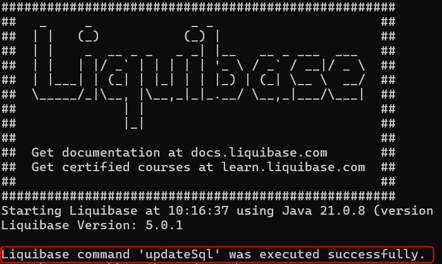
- The dev_to_prod_all_except_views_rawvault.sql file was created in the changelog folder:
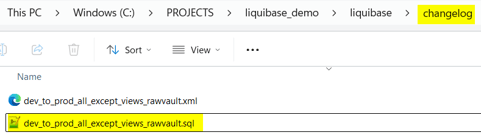
- It contains the SQL script with the delta changes, for example:

All Views
For the delta deployment of the Views, we will generate a Jupyter Notebook containing the creation scripts for all Views in DEV from a Python script.
-
Download the Python script here
- Adapt the variables according to your Databricks environment
-
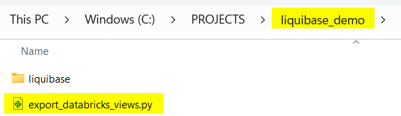
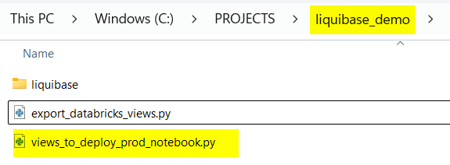
Copy it into the root folder liquibase_demo:
-
Install the required Python libraries:
pip install databricks-sdk
pip install databricks-sql-connector
- Execute the Python code:
python .\export_databricks_views.py
-
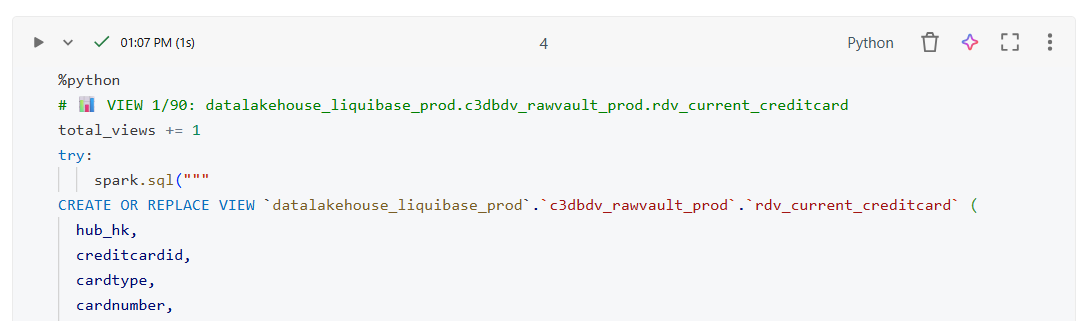
The views_to_deploy_prod._notebook.py Jupyter Notebook file was created:
- It contains all the View creation, for example:
Execute the Delta Deployment scripts
Execute the delta deployment in the PROD environment in the following order:
- Prerequisite:
- In all dev_to_prod_all_except_views_XXX.sql content (for each schema)
- Search for DROP COLUMN
- For each DROP COLUMN, identify the table name
- Execute the following command:
-- Update catalog name, schema name amd table name
ALTER TABLE datalakehouse_liquibase_prod.c3dbdv_rawvault_prod.rdv_sat_orderdetail
SET TBLPROPERTIES ('delta.columnMapping.mode' = 'name');
Delta Lake column mapping is required to DROP columns without rewriting data files. This command cannot be created by Liquibase because the <dropColumn> changeset generates generic ALTER TABLE table DROP COLUMN column SQL.
It doesn't know:
-
This is a Delta table
-
Delta requires column mapping first
-
The specific TBLPROPERTIES Syntax is Databricks/Delta-only
- Execute delta deployment for all database objects except views:
- For each schema:
- Copy the dev_to_prod_all_except_views_XXX.sql content into a new Notebook in Databricks
- Execute it
- For each schema:
- Execute delta deployment for views:
- Import the views_to_deploy_prod_notebook in Databricks
- Execute it
- Execute it several times in case of errors (errors due to the view creation order)
Here we go! All your changes have now been deployed on PROD without losing any production data.
You can now load the data with the following load controls: